
My80211 White Papers (Coming Soon!)

Cisco Wireless Compatibility Matrix (Nov. 2011)

Social Links
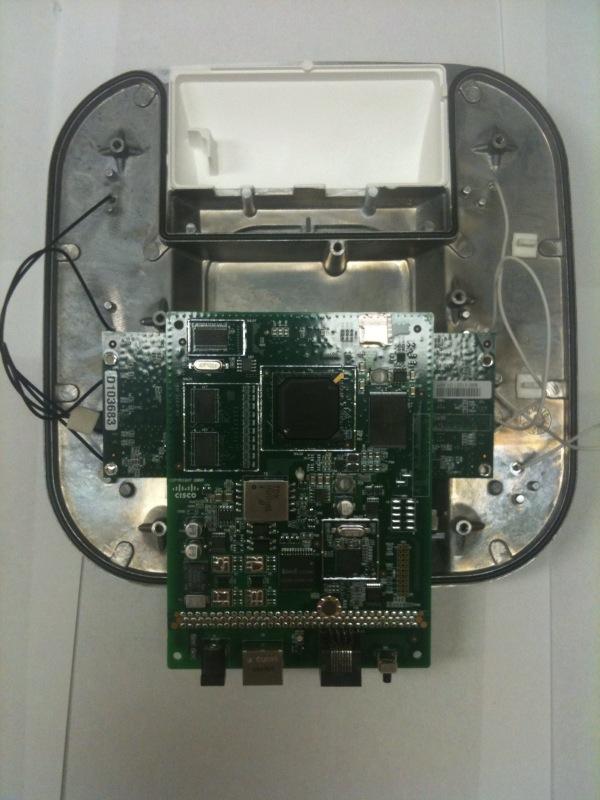
Peek Inside Cisco's Gear

See inside Cisco's latest wireless gear!

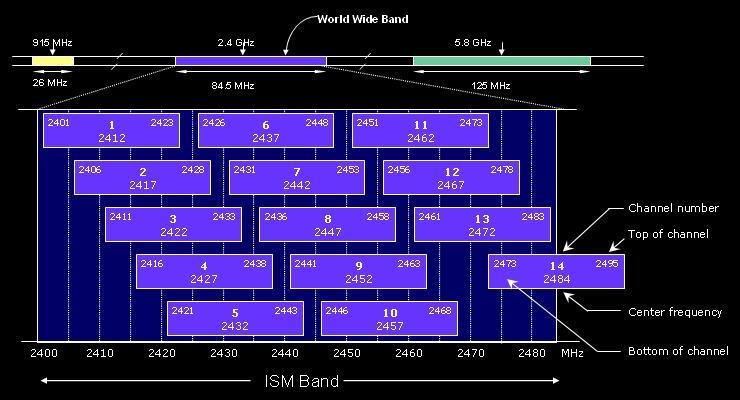
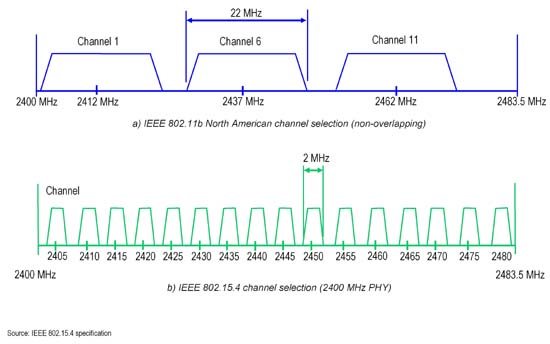
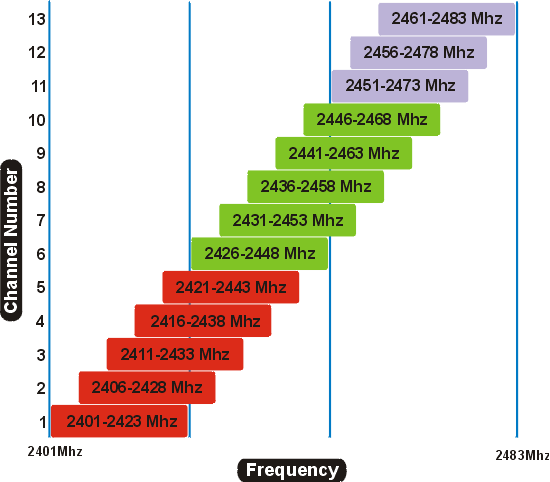
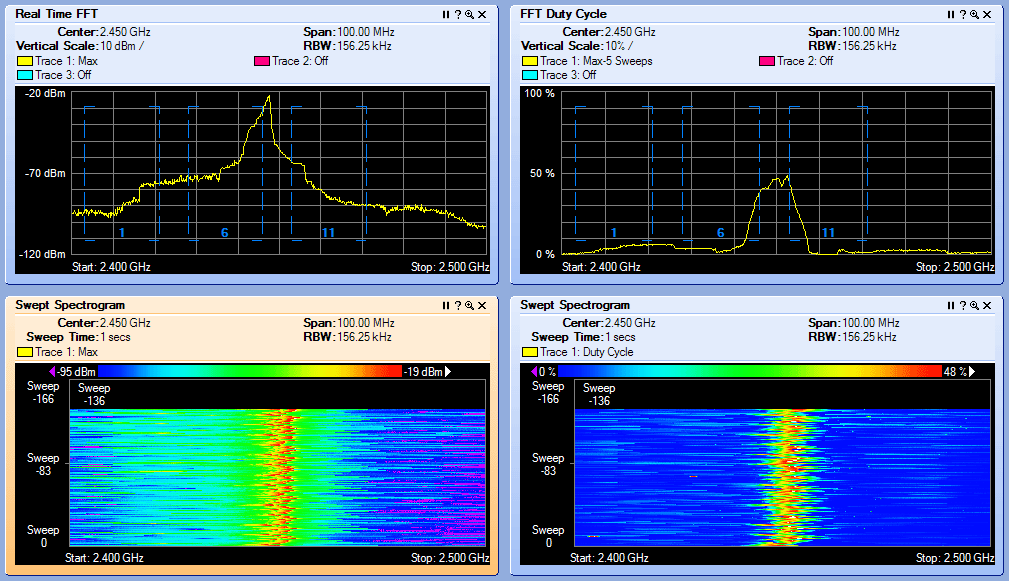
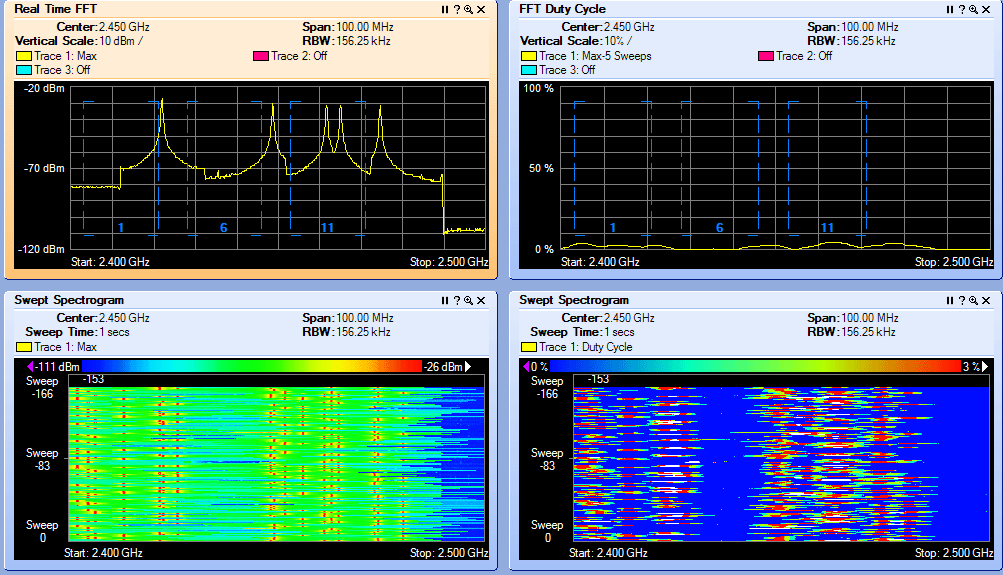
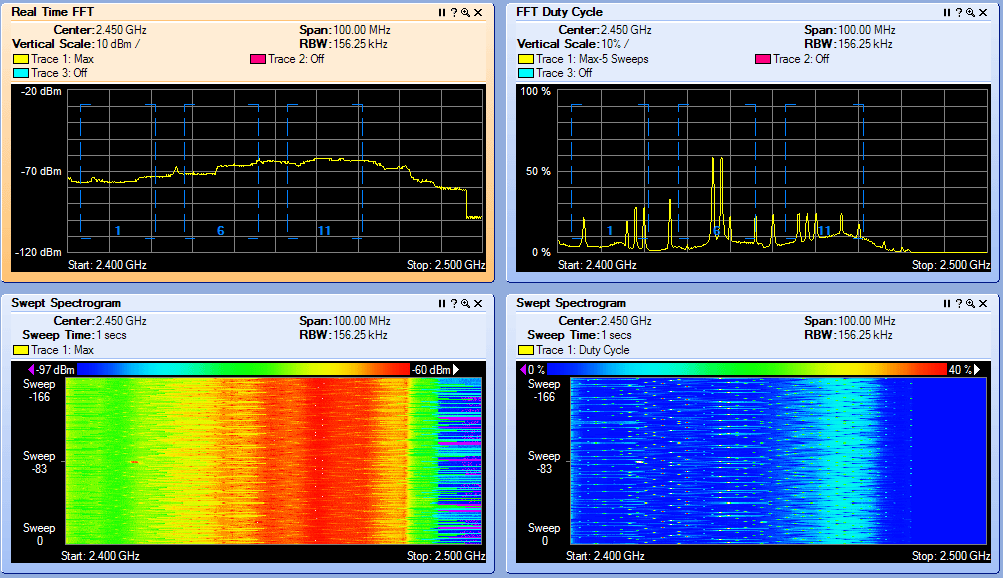
2.4 GHz Channel Overlap

EXAMPLE 1  

EXAMPLE 2

EXAMPLE 3  

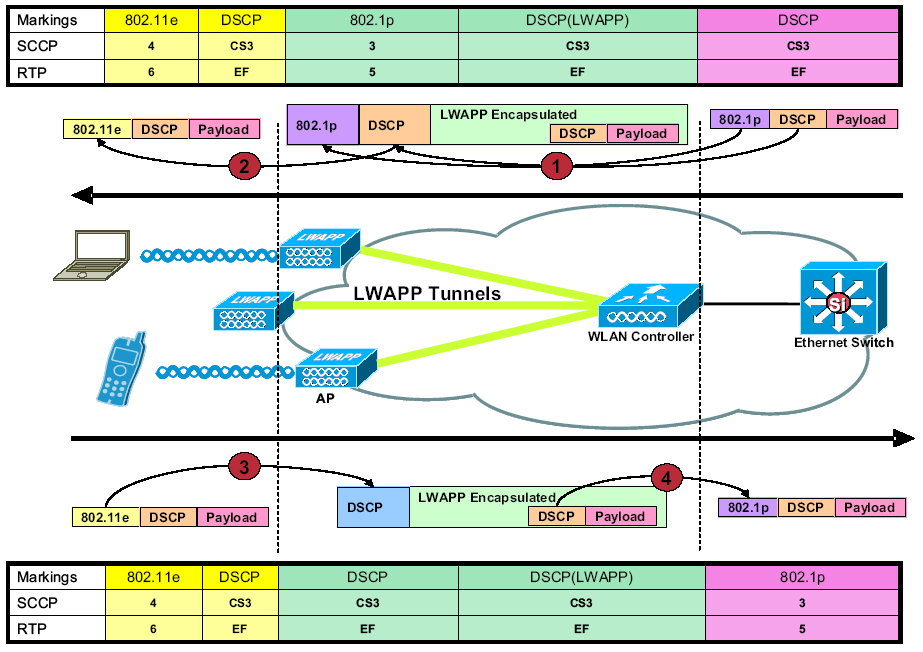
LWAPP QoS Packet Tagging


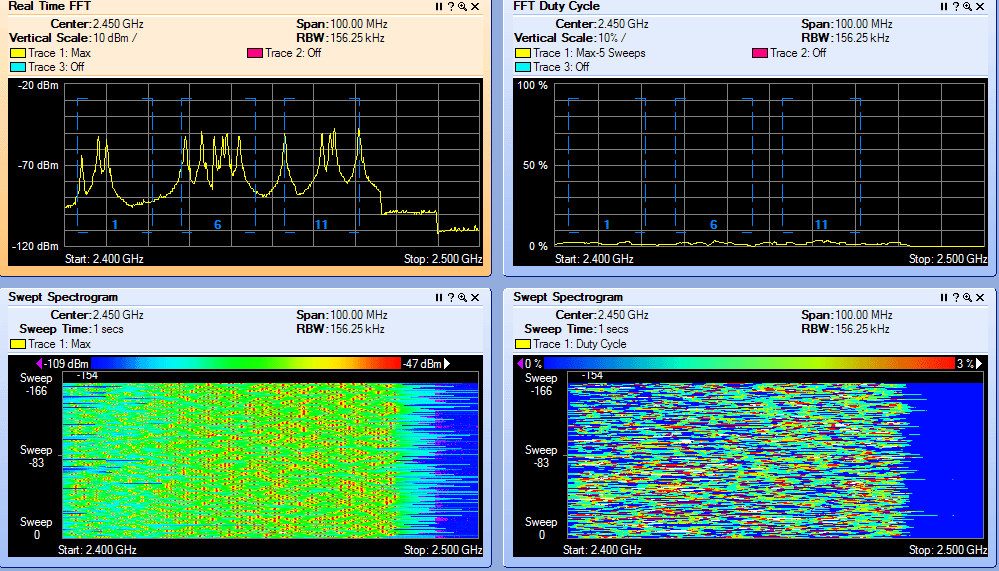
Interference Types

BLUETOOTH
 

Microwave Oven
 

Cordless Phone

JAMMER!
 

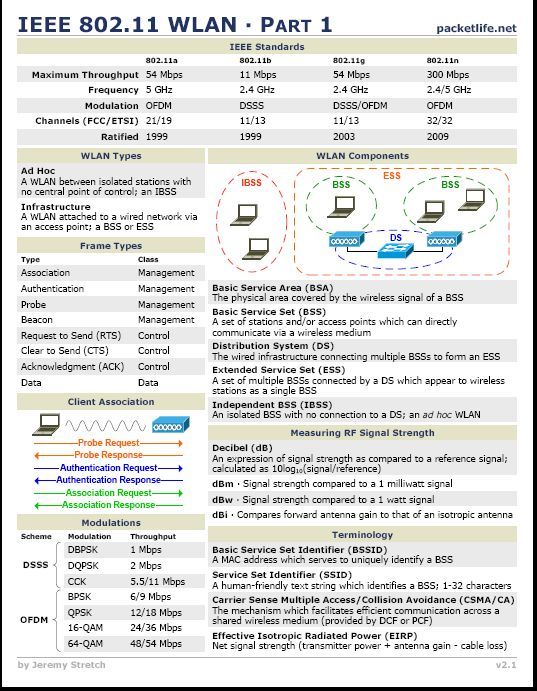
IEEE 802.11a/g/n Reference Sheet


CWSP RELEASE DATE 2/08/2010
  • CWSP Certified Wireless Security Professional Official Study Guide: Exam PW0-204
    CWSP Certified Wireless Security Professional Official Study Guide: Exam PW0-204
    by David D. Coleman, David A. Westcott, Bryan E. Harkins, Shawn M. Jackman

    Shawn Jackman (Jack) CWNE#54 is a personal friend and has been a mentor to me for many years.  I've had the pleasure and opportunity to work with Jack for 4 years. Jack is a great teacher who takes complex 802.11 standards and breaks them down so almost anyone can understand the concept at hand. I'm excited for you brother. Great job and job well done! Put another notch in the belt!

« IPhone APP: dot11wavelength | Main | Web Power Switch II »
Monday
Dec072009

IPhone App: WiFi Scanner ~ WiFiFoFum 

I tried a few of the IPhone WiFi scanners, nothing to write home to mom about. Until I tried WiFiFoFum scanner. It reminds me of Netstumber from back in the day, but with the GPS option. This scanner not only scans for WiFi networks, but it also records the location via GPS for later review. It records the data in a KML file that you can email yourself and drop into google maps or review right from your IPhone.

There are 4 radio buttons:

Networks - This button displays the basics ~ SSID, mac address, RSSI, data rates and if the network is secure.
Radar - Pretty useless. It gives you a visual of how close you are. If you are in the crosshairs you are on the money.

Logging - The logging function is pretty cool. When you enable logging it will record your position when your IPhone heard the access point. Once you stop the logging it records your data in a file with the date and time. You click on that file and a google map pops up showing you the access points it found. You can also send yourself the file, its in a KML file.

Settings - The last button is the settings button. All the basic here, scan rate, RSSI filter, etc.


Reader Comments

There are no comments for this journal entry. To create a new comment, use the form below.

PostPost a New Comment

Enter your information below to add a new comment.

My response is on my own website »
Author Email (optional):
Author URL (optional):
Post:
 
Some HTML allowed: <a href="" title=""> <abbr title=""> <acronym title=""> <b> <blockquote cite=""> <code> <em> <i> <strike> <strong>