



;)

Sunday
May092010
WLC: Configuring Fast SSID Changing
 Sunday, May 9, 2010 at 8:31PM


So when you jump between different SSIDs on your WLC are you noticing a delay connecting right away to the new SSID? If you answered, YES.... Do you have fast ssid enabled?
When fast SSID changing is enabled, the controller allows clients to move between SSIDs quicker. When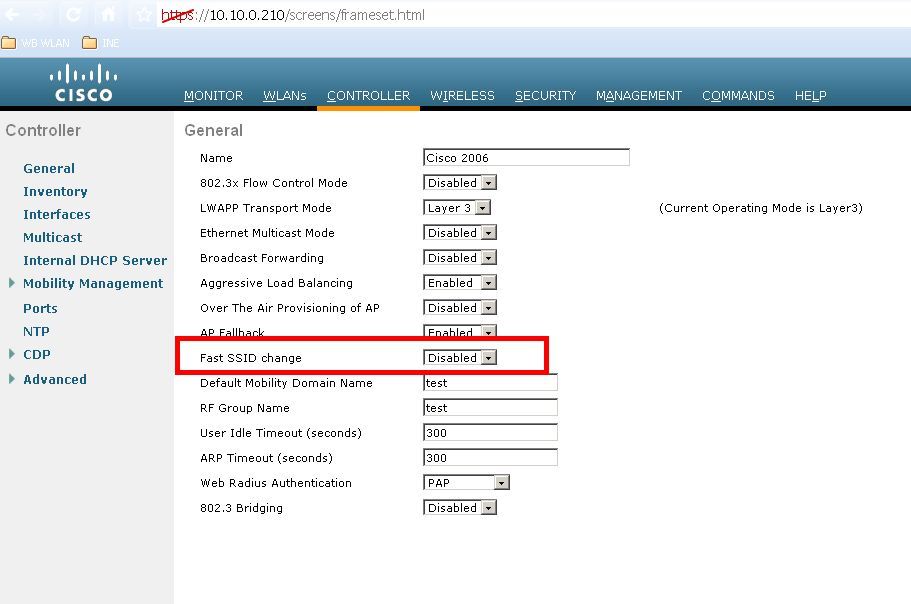 the client sends a new association for a different SSID, the client entry in the controller connection table is cleared before the client is added to the new SSID.
When fast SSID changing is disabled, the controller enforces a delay before clients are allowed to move to a new SSID.
Keep in mind this is a global setting.
CLI COMMAND:
config network fast-ssid-change {enable | disable}
GUI COMMAND:
Step 1 Choose Controller to open the General page.
Step 2 From the Fast SSID Change drop-down box, choose Enabled to enable this feature or Disabled to disable it. The default value is disabled.
Step 3 Click Apply to commit your changes.
Step 4 Click Save Configuration to save your changes.
Reader Comments (1)
So what is the length of this SSID change delay? Everything says that there is a delay but they dont say the length !