<?xml version="1.0" encoding="UTF-8"?>
<!--Generated by Squarespace Site Server v5.11.81 (http://www.squarespace.com/) on Thu, 16 Feb 2012 02:44:56 GMT--><feed xmlns="http://www.w3.org/2005/Atom" xmlns:dc="http://purl.org/dc/elements/1.1/"><title>Cisco WLC CLI Commands</title><subtitle>Cisco WLC CLI Commands</subtitle><id>http://www.my80211.com/cisco-wlc-cli-commands/</id><link rel="alternate" type="application/xhtml+xml" href="http://www.my80211.com/cisco-wlc-cli-commands/"/><link rel="self" type="application/atom+xml" href="http://www.my80211.com/cisco-wlc-cli-commands/atom.xml"/><updated>2012-01-24T04:17:57Z</updated><generator uri="http://www.squarespace.com/" version="Squarespace Site Server v5.11.81 (http://www.squarespace.com/)">Squarespace</generator><entry><title>WLC: AP Managers Are Pingable - 7.x onwards</title><id>http://www.my80211.com/cisco-wlc-cli-commands/2012/1/23/wlc-ap-managers-are-pingable-7x-onwards.html</id><link rel="alternate" type="text/html" href="http://www.my80211.com/cisco-wlc-cli-commands/2012/1/23/wlc-ap-managers-are-pingable-7x-onwards.html"/><author><name>George</name></author><published>2012-01-24T04:00:28Z</published><updated>2012-01-24T04:00:28Z</updated><content type="html" xml:lang="en-US"><![CDATA[<h3>Since the very beginning the AP manager on a Cisco WLC would never respond to pings. Well that has all changed if you use LAG and a AP manager with 7.x code!</h3>
<p>I like how Cisco hides little nuggets in their documentation. It states, in LAG mode, the management and AP manager uses the same base LAG MAC address.</p>
<p><span class="content"> </span></p>
<div class="Note1B"><img src="http://www.cisco.com/en/US/i/templates/note.gif" alt="" /></div>
<hr class="Cautn1table" />
<p><a name="wp1304690"></a></p>
<p class="pN1_Note1"><strong>Note </strong><img src="http://www.cisco.com/en/US/i/templates/blank.gif" border="0" alt="" width="1" height="2" />With  the 7.0 release onwards, the MAC address of the management interface  and the AP-manager interface is the same as the base LAG MAC address.</p>

<h3>LAB</h3>
<p>A show ARP on the distribution switch you can see the MAC is identical for both the manager and AP manager.</p>
<p><span class="full-image-block ssNonEditable"><span><img src="http://www.my80211.com/storage/ap.manager.ping.gif?__SQUARESPACE_CACHEVERSION=1327376904009" alt="" /></span></span></p>
<p>NOTE --</p>
<p>This was tested on 4402,4404 and 5508 model controllers.</p>
<p>AP manager(s) aren't needed with a 5508.</p>
<p>This only applies to a WLC in LAG mode w/ AP Manager</p>
<h3>Additional Reading Material:</h3>
<p><a href="http://www.cisco.com/en/US/docs/wireless/controller/7.0/configuration/guide/c70mint.html#wp1117168">http://www.cisco.com/en/US/docs/wireless/controller/7.0/configuration/guide/c70mint.html#wp1117168</a></p>]]></content></entry><entry><title>Recover WEP, Admin, Guest account Password from WLC</title><id>http://www.my80211.com/cisco-wlc-cli-commands/2011/12/12/recover-wep-admin-guest-account-password-from-wlc.html</id><link rel="alternate" type="text/html" href="http://www.my80211.com/cisco-wlc-cli-commands/2011/12/12/recover-wep-admin-guest-account-password-from-wlc.html"/><author><name>George</name></author><published>2011-12-12T23:29:52Z</published><updated>2011-12-12T23:29:52Z</updated><content type="html" xml:lang="en-US"><![CDATA[<h3>Salil Prabhu from Cisco TAC did a great post on how to recover WEP, ADMIN and Guest account passwords. Note this will not yield the PSK key. As you can not pull the PSK from a WLC.</h3>
<div class="jive-cisco-profile-name"></div>
<p><strong>Procedure to Recover WEP,Admin,Guest account Password from WLC</strong></p>
<p><strong style="color: #993300;">Step 1 :</strong></p>
<p style="min-height: 8pt; height: 8pt; padding: 0px;">1. <strong style="color: #3366ff;">(Cisco Controller) &gt;show switchconfig</strong></p>
<pre style="margin: 0em;">802.3x Flow Control Mode......................... Disable<br />FIPS prerequisite features....................... Disabled<br />secret obfuscation............................... Enabled</pre>
<p><strong style="color: #3366ff;"><tt>(Cisco Controller) &gt;config switchconfig secret-obfuscation disabled</tt></strong></p>
<p>Secret (de-)obfuscation may take a few minutes.</p>
<pre style="margin: 0em;">Please wait...&nbsp; Done!</pre>
<p style="min-height: 8pt; height: 8pt; padding: 0px;">&nbsp;</p>
<p><strong style="color: #3366ff;"><tt>(Cisco Controller) &gt;config passwd-cleartext enable</tt></strong></p>
<p>The way you see your passwds will be changed</p>
<pre style="margin: 0em;">You are being warned.<br /></pre>
<p style="min-height: 8pt; height: 8pt; padding: 0px;">Enter admin password: ***********</p>
<pre style="margin: 0em;">Enabling cleartext viewing of passwords</pre>
<p style="min-height: 8pt; height: 8pt; padding: 0px;">&nbsp;</p>
<p><strong style="color: #993300;">Step 2: </strong></p>
<p style="min-height: 8pt; height: 8pt; padding: 0px;">&nbsp;</p>
<pre style="margin: 0em;">2. Download config from the WLC. Commands --&gt; Upload configuration from<br />WLC to tftp server.<br /></pre>
<p style="min-height: 8pt; height: 8pt; padding: 0px;">&nbsp;</p>
<p style="min-height: 8pt; height: 8pt; padding: 0px;"><strong style="color: #993300;">Step 3:</strong><br />3. Open the file in notepad :<strong style="color: #008000; font-size: 14pt;"> </strong></p>
<p style="min-height: 8pt; height: 8pt; padding: 0px;">&nbsp;</p>
<p><strong style="color: #008000;">WEP :</strong></p>
<p>config wlan security static-wep-key encryption 4 <strong style="color: #ff0000;">40</strong> hex encrypt 0 0 0 128 <strong style="color: #ff6600;">3132333435</strong>00000000000000000000000000000000000000000000000000000000000000000000000000000000000000000000000000000000000000000000000000000000000000000000000000000000000000000000000000000000000000000000000000000000000000000000000000000000000000000000000000000000000000000000000000000000000000&nbsp;  1</p>
<p><strong style="color: #ff0000;">40 = 40 bit key</strong></p>
<p style="min-height: 8pt; height: 8pt; padding: 0px;">&nbsp;</p>
<p><strong style="color: #008000; font-size: 12pt;">ADMIN :</strong></p>
<p>config mgmtuser add encrypt <strong style="color: #ff00ff;">admin1</strong> 0 0 0 8 <strong style="color: #ff6600;">436973636f313233</strong>00000000000000000000000000000000000000000000000000000000000000000000000000000000000000000000000000000000000000000000 <strong style="color: #ff00ff;">read-write</strong></p>
<p style="min-height: 8pt; height: 8pt; padding: 0px;">&nbsp;</p>
<p><strong style="color: #008000; font-size: 12pt;">Guest-Account :</strong></p>
<p>config netuser add encrypt username<strong style="color: #0000ff;"> guest-1</strong> password 0 0 0 7 <strong style="color: #ff6600;">67756573742d31</strong>0000000000000000000000000000000000000000000000000000000000000000000000000000000000000000000000000000000000000000000000&nbsp;  wlan 0 usertype guest lifetime 86400</p>
<p style="min-height: 8pt; height: 8pt; padding: 0px;">&nbsp;</p>
<p><strong style="color: #993300;">Step 4:</strong></p>
<p style="min-height: 8pt; height: 8pt; padding: 0px;">4. Use this tool to convert to Ascii : ( Use red colour digits ..)</p>
<pre style="margin: 0em;"><a class="jive-link-external-small" href="http://www.dolcevie.com/js/converter.html">http://www.dolcevie.com/js/converter.html</a><br /><br /><strong style="color: #008000;">WEP</strong> : Key size = 40bit.<br /><pre style="margin: 0em;">HEX :<strong style="color: #ff6600;">3132333435</strong> <br />Ascii : 12345 ( using the tool ) <br /></pre>
<br /><strong style="color: #008000;">ADMIN</strong> : Username : admin1 <br />HEX : <strong style="color: #ff6600;">436973636f313233</strong> <br />Ascii : Cisco123 <br /><br /><strong style="color: #008000;">Guest-Account</strong>: Username: guest-1 <br />HEX: <strong style="color: #ff6600;">67756573742d31</strong>&nbsp; <br />Ascii : guest-1&nbsp;</pre>]]></content></entry><entry><title>WLC: Configuring Dynamic Anchoring for Clients with Static IP Addresses</title><id>http://www.my80211.com/cisco-wlc-cli-commands/2011/5/16/wlc-configuring-dynamic-anchoring-for-clients-with-static-ip.html</id><link rel="alternate" type="text/html" href="http://www.my80211.com/cisco-wlc-cli-commands/2011/5/16/wlc-configuring-dynamic-anchoring-for-clients-with-static-ip.html"/><author><name>George</name></author><published>2011-05-16T20:02:49Z</published><updated>2011-05-16T20:02:49Z</updated><content type="html" xml:lang="en-US"><![CDATA[<h3><strong>If you have a WLAN that requires a large mobility area for roaming and your client needs to be static. This feature is something you should consider! This will allow you to break up these large subnets into much smaller sizeable subnets while still allowing static address on your mobile devices.&nbsp; <br /></strong></h3>
<p>In Cisco 7.0.116.0 release a new feature "Configuring Dynamic Anchoring for Clients with Static IP Addresses" appears to have resolved my issue.</p>
<p>P.S. Below is a cut and paste from 7.0.116.0 config manual. Here is the link:</p>
<p>http://www.cisco.com/en/US/docs/wireless/controller/7.0MR1/configuration/guide/cg_mobility.html#wp1208318</p>
<h3><strong>Configuring Dynamic Anchoring for Clients with Static IP Addresses</strong></h3>
<p><span style="color: black; font-style: normal; font-weight: normal;">At  times you may want to configure static IP addresses for wireless  clients. When these wireless clients move about in a network, they could  try associating with other controllers. If the clients try to associate  with a controller that does not support the same subnet as the static  IP, the clients fail to connect to the network. You can now enable  dynamic tunneling of clients with static IP addresses.</span><span style="color: black; font-style: normal; font-weight: normal;"><br /><br />Dynamic  anchoring of static IP clients with static IP addresses can be  associated with other controllers where the client's subnet is supported  by tunneling the traffic to another controller in the same mobility  group. This feature enables you to configure your WLAN so that the  network is serviced even though the clients use static IP addresses.</span><span style="color: black; font-style: normal; font-weight: bold;"><br /></span></p>
<h3><span style="color: black; font-style: normal; font-weight: bold;">How Dynamic Anchoring of Static IP Clients Works</span><span style="color: black; font-style: normal; font-weight: normal;">&nbsp;</span></h3>
<h3><span style="color: black; font-style: normal; font-weight: normal;">&nbsp;</span><span style="color: black; font-style: normal; font-weight: normal;">The following sequence of steps occur when a client with a static IP address tries to associate with a controller:</span></h3>
<p><strong><br />1. </strong><img src="http://www.cisco.com/en/US/i/templates/blank.gif" border="0" alt="" width="10" height="2" /><span style="color: black; font-style: normal; font-weight: normal;">When  a client associates with a controller, for example, WLC-1, it performs a  mobility announcement. If a controller in the mobility group responds  (for example WLC-2), the client traffic is tunneled to the controller  WLC-2. As a result, the controller WLC 1 becomes the foreign controller  and WLC-2 becomes the anchor controller.</span><strong><br /><br />2. </strong><img src="http://www.cisco.com/en/US/i/templates/blank.gif" border="0" alt="" width="10" height="2" /><span style="color: black; font-style: normal; font-weight: normal;">If  none of the controllers respond, the client is treated as a local  client and authentication is performed. The IP address for the client is  updated either through an orphan packet handling or an ARP request  processing. If the client's IP subnet is not supported in the controller  (WLC-1), WLC-1 sends another static IP mobile announce and if a  controller (for example WLC-3) which supports the clients subnet  responds to that announce, the client traffic is tunneled to that  controller WLC-3. As a result, the controller WLC 1 becomes the export  foreign controller and WLC-2 becomes the export anchor controller.</span><strong><br /><br />3. </strong><img src="http://www.cisco.com/en/US/i/templates/blank.gif" border="0" alt="" width="10" height="2" /><span style="color: black; font-style: normal; font-weight: normal;">Once the acknowledgement is received, the client traffic is tunneled between the anchor and the controller (WLC-1).</span></p>
<p>&nbsp;</p>
<p><span class="content">
<div class="Note1B"><img src="http://www.cisco.com/en/US/i/templates/note.gif" alt="" /></div>
<hr class="Cautn1table" />
<a name="wp1221042"></a>
<p class="pN1_Note1"><strong>Note </strong><img src="http://www.cisco.com/en/US/i/templates/blank.gif" border="0" alt="" width="1" height="2" />If  you configure WLAN with an interface group and any of the interfaces in  the interface group supports the static IP client subnet, the client is  assigned to that interface. This situation occurs in local or remote  (static IP Anchor) controller.</p>
<hr class="Cautn1table" />
<div class="Note1B"><img src="http://www.cisco.com/en/US/i/templates/note.gif" alt="" /></div>
<hr class="Cautn1table" />
<a name="wp1208654"></a>
<p class="pN1_Note1"><strong>Note </strong><img src="http://www.cisco.com/en/US/i/templates/blank.gif" border="0" alt="" width="1" height="2" />A  security level 2 authentication is performed only in the local (static  IP foreign) controller, which is also known as the exported foreign  controller.</p>
<hr class="Cautn1table" />
<div class="Note1B"><img src="http://www.cisco.com/en/US/i/templates/note.gif" alt="" /></div>
<hr class="Cautn1table" />
<a name="wp1220338"></a>
<p class="pN1_Note1"><strong>Note </strong><img src="http://www.cisco.com/en/US/i/templates/blank.gif" border="0" alt="" width="1" height="2" />Do  not configure overridden interfaces when you perform AAA for static IP  tunneling, this is because traffic can get blocked for the client if the  overridden interface does not support the client's subnet. This can be  possible in extreme cases where the overriding interface group supports  the client's subnet.</p>
<hr class="Cautn1table" />
<div class="Note1B"><img src="http://www.cisco.com/en/US/i/templates/note.gif" alt="" /></div>
<hr class="Cautn1table" />
<a name="wp1208649"></a>
<p class="pN1_Note1"><strong>Note </strong><img src="http://www.cisco.com/en/US/i/templates/blank.gif" border="0" alt="" width="1" height="2" />The local controller must be configured with the correct AAA server where this client entry is present.</p>
<hr class="Cautn1table" />
<a name="wp1213539"></a>
<p class="pB1_Body1">The following restrictions apply when configuring static IP tunneling with other features on the same WLAN:</p>
<a name="wp1213540"></a>
<p class="pBu1_Bullet1">&bull;<img src="http://www.cisco.com/en/US/i/templates/blank.gif" border="0" alt="" width="19" height="2" />Auto anchoring mobility (guest tunneling) cannot be configured for the same WLAN.</p>
<a name="wp1213541"></a>
<p class="pBu1_Bullet1">&bull;<img src="http://www.cisco.com/en/US/i/templates/blank.gif" border="0" alt="" width="19" height="2" />Hybrid-REAP local authentication cannot be configured for the same WLAN.</p>
<a name="wp1213542"></a>
<p class="pBu1_Bullet1">&bull;<img src="http://www.cisco.com/en/US/i/templates/blank.gif" border="0" alt="" width="19" height="2" />The DHCP required option cannot be configured for the same WLAN.</p>
<div class="Note1B"><img src="http://www.cisco.com/en/US/i/templates/note.gif" alt="" /></div>
<hr class="Cautn1table" />
<a name="wp1213526"></a>
<p class="pN1_Note1"><strong>Note </strong><img src="http://www.cisco.com/en/US/i/templates/blank.gif" border="0" alt="" width="1" height="2" />You cannot configure dynamic anchoring of static IP clients with hybrid REAP local switching.</p>
<hr class="Cautn1table" />
<a name="Using_the_GUI_to_Configure_Dynamic_Anchoring_of_Static_IP_Clients"> </a> <a name="wp1208442"></a><a name="wpmkr1220393"></a>
<h3 class="p_H_Head2">Using the GUI to Configure Dynamic Anchoring of Static IP Clients</h3>
<a name="wp1213450"></a>
<p class="pB1_Body1">To configure dynamic anchoring of static IP clients using the controller GUI, follow these steps:</p>
<hr noshade="noshade" />
<a name="wp1213452"></a>
<p class="pSF_StepFirst"><strong>Step&nbsp;1 </strong><img src="http://www.cisco.com/en/US/i/templates/blank.gif" border="0" alt="" width="5" height="2" />Choose <span style="color: black; font-style: normal; font-weight: bold;">WLANs</span> to open the WLANs page.</p>
<a name="wp1213186"></a>
<p class="pSN_StepNext"><strong>Step&nbsp;2 </strong><img src="http://www.cisco.com/en/US/i/templates/blank.gif" border="0" alt="" width="5" height="2" />Click  the ID number of the WLAN on which you want to enable dynamic anchoring  of IP clients. The WLANs &gt; Edit page is displayed.</p>
<a name="wp1213187"></a>
<p class="pSN_StepNext"><strong>Step&nbsp;3 </strong><img src="http://www.cisco.com/en/US/i/templates/blank.gif" border="0" alt="" width="5" height="2" />Choose the <strong class="cBold">Advanced</strong> tab to open the WLANs &gt; Edit (Advanced) page.</p>
<a name="wp1213206"></a>
<p class="pSN_StepNext"><strong>Step&nbsp;4 </strong><img src="http://www.cisco.com/en/US/i/templates/blank.gif" border="0" alt="" width="5" height="2" />Enable dynamic anchoring of static IP clients by selecting the <strong class="cBold">Static IP Tunneling</strong> check box.</p>
<a name="wp1213214"></a>
<p class="pSN_StepNext"><strong>Step&nbsp;5 </strong><img src="http://www.cisco.com/en/US/i/templates/blank.gif" border="0" alt="" width="5" height="2" />Click <strong class="cBold">Apply</strong> to commit your changes.</p>
</span></p>
<p><span class="content">
<h3 class="p_H_Head2">Using the CLI to Configure Dynamic Anchoring of Static IP Clients</h3>
<a name="wp1208885"></a>
<p class="pB1_Body1">To configure dynamic anchoring of Static IP clients using the controller CLI, use the following commands:</p>
<a name="wp1208903"></a>
<p class="pB1_Body1"><strong class="cBold" style="font-weight: bold;">config wlan static-ip tunneling {enable | disable} </strong><span style="color: black; font-style: italic; font-weight: normal;">wlan_id</span>&mdash; Enables or disables the dynamic anchoring of static IP clients on a given WLAN.</p>
<a name="wp1209097"></a>
<p class="pB1_Body1">To monitor and troubleshoot your controller for clients with static IP, use the following commands:</p>
<a name="wp1209003"></a>
<p class="pBu1_Bullet1">&bull;<img src="http://www.cisco.com/en/US/i/templates/blank.gif" border="0" alt="" width="19" height="2" /><strong class="cBold">show wlan</strong> <em class="cEmphasis">wlan_id</em>&mdash;Enables you to see the status of the static IP clients feature.</p>
<a name="wp1209019"></a>
<p class="pB2_Body2"><span class="cExBold">..............</span></p>
<a name="wp1209020"></a>
<p class="pB2_Body2"><span class="cExBold">Static IP client tunneling.............. Enabled</span></p>
<a name="wp1209021"></a>
<p class="pB2_Body2"><span class="cExBold">..............</span></p>
<a name="wp1209031"></a>
<p class="pBu1_Bullet1">&bull;<img src="http://www.cisco.com/en/US/i/templates/blank.gif" border="0" alt="" width="19" height="2" /><strong class="cBold">debug client</strong> <em class="cEmphasis">client-mac</em></p>
<a name="wp1209043"></a>
<p class="pBu1_Bullet1">&bull;<img src="http://www.cisco.com/en/US/i/templates/blank.gif" border="0" alt="" width="19" height="2" /><strong class="cBold">debug dot11 mobile</strong> enable</p>
<a name="wp1209048"></a>
<p class="pBu1_Bullet1">&bull;<img src="http://www.cisco.com/en/US/i/templates/blank.gif" border="0" alt="" width="19" height="2" /><strong class="cBold">debug mobility handoff</strong> enable</p>
<a name="Configuring_Foreign_Mappings"> </a> <a name="wp1226319"></a>
<h3 class="p_H_Head2">Configuring Foreign Mappings</h3>
<a name="wp1226320"></a>
<p class="pB1_Body1">Auto-Anchor mobility, also known as Foreign Mapping, allows you to  configure users that are on different foreign controllers to obtain IP  addresses from a subnet or group of subnets.</p>
<a name="Using_the_GUI_to_Configure_Foreign_MAC_Mapping"> </a> <a name="wp1226321"></a>
<h3 class="p_H_Head3">Using the GUI to Configure Foreign MAC Mapping</h3>
<a name="wp1226322"></a>
<p class="pB1_Body1">To configure a foreign mapping using the controller GUI, follow these steps:</p>
<hr noshade="noshade" />
<a name="wp1226323"></a>
<p class="pSF_StepFirst"><strong>Step&nbsp;1 </strong><img src="http://www.cisco.com/en/US/i/templates/blank.gif" border="0" alt="" width="5" height="2" />Choose the WLANs tab.</p>
<a name="wp1226324"></a>
<p class="pSB_StepBody">The WLANs page appears listing the available WLANs.</p>
<a name="wp1226325"></a>
<p class="pSN_StepNext"><strong>Step&nbsp;2 </strong><img src="http://www.cisco.com/en/US/i/templates/blank.gif" border="0" alt="" width="5" height="2" /> Click the Blue drop down arrow for the desired WLAN and choose <strong class="cBold">Foreign-Maps</strong>.</p>
<a name="wp1226326"></a>
<p class="pSB_StepBody">The foreign mappings page appears. This page also lists the MAC  addresses of the foreign controllers that are in the mobility group and  interfaces/interface groups.</p>
<a name="wp1226327"></a>
<p class="pSN_StepNext"><strong>Step&nbsp;3 </strong><img src="http://www.cisco.com/en/US/i/templates/blank.gif" border="0" alt="" width="5" height="2" /> Choose the desired foreign controller MAC and the interface or interface group to which it must be mapped and click on <strong class="cBold">Add Mapping</strong>.</p>
<hr class="Cautn1table" />
<a name="wp1226350"></a> <a name="Using_the_CLI_to_Configure_Foreign_Controller_MAC_Mapping"> </a> <a name="wp1226493"></a>
<h3 class="p_H_Head3">Using the CLI to Configure Foreign Controller MAC Mapping</h3>
<a name="wp1226504"></a>
<p class="pB1_Body1">To configure foreign controller MAC mapping, use this command:</p>
<a name="wp1226505"></a>
<p class="pB1_Body1"><strong class="cBold">config wlan mobility foreign-map add</strong> <em class="cEmphasis">wlan-id</em> <em class="cEmphasis">foreign_ctlr_mac</em> <em class="cEmphasis">interface/interface_grp name</em></p>
<a name="wp1226514"></a>
<p class="pB1_Body1">To configure a foreign mappings, use this command:</p>
<a name="wp1226495"></a>
<p class="pB1_Body1"><strong class="cBold">config wlan mobility foreign-map add</strong> <em class="cEmphasis">wlan_id</em> <em class="cEmphasis">interface</em></p>
</span></p>
<p><span style="color: black; font-style: normal; font-weight: normal;"><br /></span></p>
<p class="pN1_Note1">&nbsp;</p>]]></content></entry><entry><title>WLC: How Cisco Virtualizes The Base Radio MAC ADDRESS On The WLC – Did you know?</title><id>http://www.my80211.com/cisco-wlc-cli-commands/2011/5/4/wlc-how-cisco-virtualizes-the-base-radio-mac-address-on-the.html</id><link rel="alternate" type="text/html" href="http://www.my80211.com/cisco-wlc-cli-commands/2011/5/4/wlc-how-cisco-virtualizes-the-base-radio-mac-address-on-the.html"/><author><name>George</name></author><published>2011-05-04T21:45:34Z</published><updated>2011-05-04T21:45:34Z</updated><content type="html" xml:lang="en-US"><![CDATA[<h3><strong>This is a quick blog post on how Cisco uses the VIRTUAL MAC ADDRESS for BSSID(s).<br /></strong></h3>
<p>As you add SSIDs (Service Set Identification(s)) to an access point each BSSID (Basic Service Set Identifier) receives a virtual mac address. This allows for wireless network segmentation as well as for wireless clients to communicate via LAYER 2 with each access point BSSID.</p>
<p>A Cisco access point takes the base radio mac address and then virtualizes the mac address as additional SSIDs are added. What is interesting is how the virtual MAC addresses are selected. Pay very close attention to the 2.4GHz and 5 GHz radios and BSSIDs.</p>
<h3>BASE RADIO MAC ADDRESS</h3>
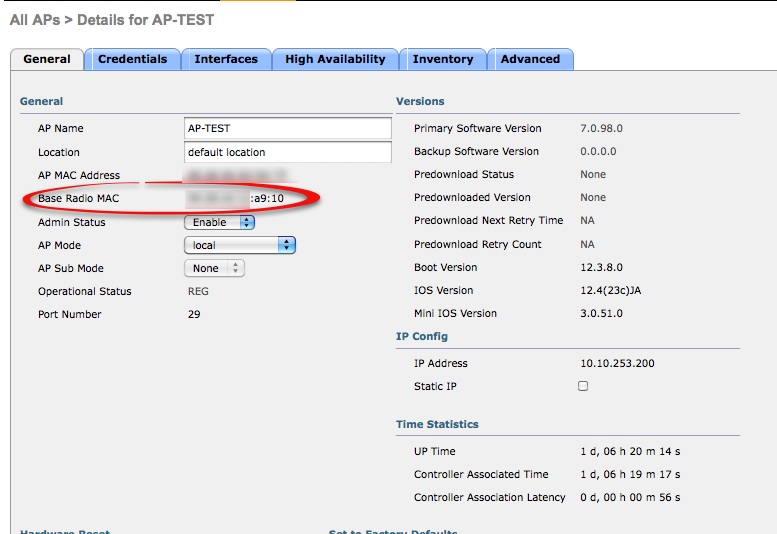
<p>You can find the base radio mac address under WIRELESS-&gt;Select Access Point</p>
<p><span class="full-image-block ssNonEditable"><span><img src="http://www.my80211.com/storage/base.radio.mac1.jpg?__SQUARESPACE_CACHEVERSION=1304397880760" alt="" /></span></span></p>
<h3>&nbsp;Virtualized BSSID(s)</h3>
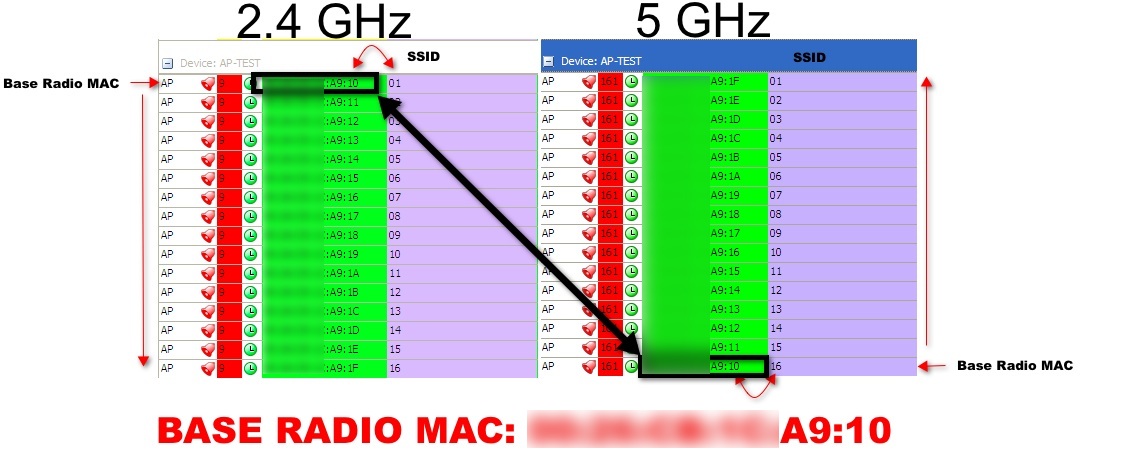
<p>I configured a controller with 16 SSIDs. Each SSID named as 01,02,03,04,05,06, 07,08,09,10,11,12,13,14,15 and 16. I then enabled both the 2.4 GHz and 5 GHz radios. Cisco WLC access points have a limit of 16 SSIDs on each radio.</p>
<p>I then fired up AirMagnet WiFi Analyzer Pro to conduct a capture.</p>
<p>Note: The access point base radio mac address ends in A9:10.</p>
<p>2.4 GHz &ndash; Notice the first SSID &lsquo;01&rsquo; is assigned the BASE RADIO MAC ADDRESS A9:10. The second SSID is appended with a .11 and so on.&nbsp;</p>
<p>5GHz &ndash; Notice the sixteenth SSID &lsquo;16&rsquo; is assigned the BASE RADIO MAC ADDRESS A9:10. The fifteenth SSID is appended with a .11 and so on.</p>
<p>NOTE: The VIRTUAL MAC ADDRESSES get reused by the access point on both the 2.4GHz and the 5GHz radios.</p>
<p><span class="full-image-block ssNonEditable"><span><img style="width: 800px;" src="http://www.my80211.com/storage/base.radio.mac.blur.jpg?__SQUARESPACE_CACHEVERSION=1304398953644" alt="" /></span></span></p>
<p>&nbsp;</p>
<h3>Virtualized BSSID Assignment</h3>
<p>Keep in mind, the assignment or order in which the virtual mac addresses are assigned in the above example has nothing to do with the WLAN IDs that are configured in the WLC. Rather, the virtual mac addresses are assigned in order by how the SSID is assigned to the access point. Lets take a look at an AP Group for example.</p>
<h3>AP GROUP EXAMPLE</h3>
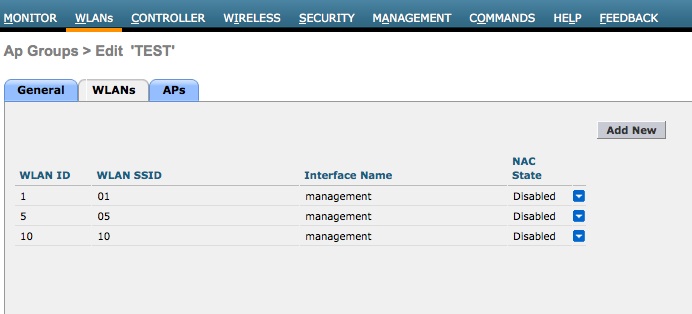
<p>In the below example I created an AP GROUP where I assigned SSIDs 01,05 and 10. Note the WLAN ID assignment from the WLC in the AP GROUP (see below). Then note the AirMagnet capture where SSIDs 01,05 and 10 are mentioned. As you can see, the BSSIDs did not take the WLC WLAN ID when compared to our last example. Rather the virtual mac address starts at the BASE RADIO mac for the first BSSID and the counts down for the 2.4GHz and starts on the opposite end for the 5 GHz.</p>
<p>&nbsp;<span class="full-image-block ssNonEditable"><span><img src="http://www.my80211.com/storage/apg1.jpg?__SQUARESPACE_CACHEVERSION=1304399530479" alt="" /></span></span></p>
<p><span class="full-image-block ssNonEditable"><span><img style="width: 800px;" src="http://www.my80211.com/storage/apgroup.jpg?__SQUARESPACE_CACHEVERSION=1304399861220" alt="" /></span></span></p>
<h3>CONCLUSION</h3>
<p>As you apply SSIDs to an access point the base radio mac address is applied to the first BSSID on the 2.4GHz radio. If you enable the 5 GHz radio you will see that the same SSID is given the 'back end' of the HEX range from the base radio mac address and counts down in HEX positions as additional SSIDs are added.&nbsp;</p>
<p>ENJOY!</p>
<p>&nbsp;</p>]]></content></entry><entry><title>WLC: Radius Statistics Command</title><id>http://www.my80211.com/cisco-wlc-cli-commands/2011/3/9/wlc-radius-statistics-command.html</id><link rel="alternate" type="text/html" href="http://www.my80211.com/cisco-wlc-cli-commands/2011/3/9/wlc-radius-statistics-command.html"/><author><name>George</name></author><published>2011-03-10T03:49:04Z</published><updated>2011-03-10T03:49:04Z</updated><content type="html" xml:lang="en-US"><![CDATA[<h3><strong>It is always nice to get emails from twitter and blog peeps. I received an email from Bruce from Erie, PA asking:</strong></h3>
<blockquote>
<p>&nbsp;Hi George,</p>
<p>Have been enjoying reading the various information you have posted&hellip; but haven&rsquo;t seen <span class="full-image-float-right ssNonEditable"><span><img style="width: 350px;" src="http://www.my80211.com/storage/eap.process?__SQUARESPACE_CACHEVERSION=1299728882234" alt="" /></span></span>anything yet on one of my favorite autonomous commands that I haven&rsquo;t found a WLC equivalent yet.</p>
<p>sh aaa server</p>
<p>Since we normally have 3 ACS servers defined on all implementations, this simple command lets me see quickly (after running &ldquo;clear aaa counters server all&rdquo;) which specific ACS server I should be looking on for failure/success logs.&nbsp; On WCS/WLC, I have yet to find anything so simple to quickly get me that information.</p>
<p>If you are aware of a WLC version of it, would love to see it covered as a topic.&nbsp; And if not, I still find my80211 to be very useful and enjoyable!&nbsp; Keep up the good work.</p>
<p>Thanks,<br />Bruce</p>
</blockquote>
<h3><strong>RADIUS Statistics</strong></h3>
<p>Bruce, my friend, you are in luck! The following commands are the equivalent commands on the WLC</p>
<p><em>&gt;show radius auth statistics</em></p>
<p><em>&gt;clear stats radius auth all</em></p>
<p>&nbsp;</p>
<h3><strong>Good information<br /></strong></h3>
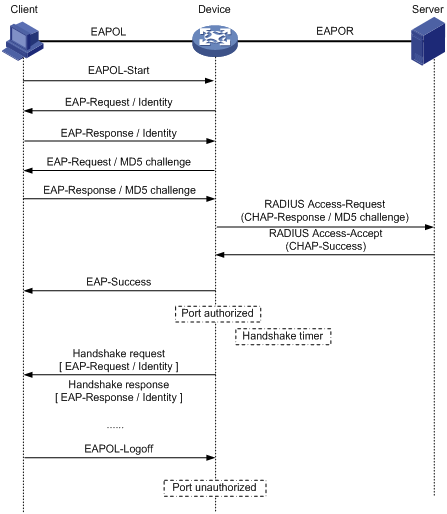
<p>When troubleshooting radius issues these stats come in handy! When your radius server is on the blink or if there is a configuration issue somewhere in the 'line' you can see if anything is passing through the WLC.&nbsp; Remember the WLC acts as the "authenticator" and simply passes the EAP packets between the client and the radius server "authentication server". No real heavy lifting is done by the WLC during this process.</p>
<p>&nbsp;</p>
<h3><strong><span style="color: #1d3a68;">show radius auth statistics output</span></strong><span style="color: #1d3a68;"><br /></span></h3>
<p><span style="color: #1d3a68;">(WiSM-slot3-1) &gt;show radius auth statistics </span></p>
<p><span style="color: #1d3a68;">Authentication Servers:</span></p>
<p><span style="color: #1d3a68;">Server Index......................................... 1</span><span style="color: #1d3a68;"><br />Server Address...................................... 192.168.1.142</span><span style="color: #1d3a68;"><br />Msg Round Trip Time.............................. 4 (msec)</span><span style="color: #1d3a68;"><br />First Requests....................................... 5360993<br />Retry Requests...................................... 8772<br />Accept Responses.................................. 518894<br />Reject Responses................................... 64866<br />Challenge Responses.............................. 4777060<br />Malformed Msgs..................................... 0<br />Bad Authenticator Msgs........................... 0<br />Pending Requests................................... 0<br />Timeout Requests................................... 9299<br />Unknowntype Msgs................................. 0<br />Other Drops........................................... 321<br /></span></p>
<p>&nbsp;</p>
<p>&nbsp;</p>
<p><span style="color: #1d3a68;">Server Index........................................ 2<br />Server Address..................................... 192.168.1.100<br />Msg Round Trip Time.............................. 5 (msec)<br />First Requests....................................... 3722718<br /></span><span style="color: #1d3a68;">Retry Requests...................................... 5533<br />Accept Responses.................................. 371506<br />Reject Responses................................... 37869</span><span style="color: #1d3a68;"><br />Challenge Responses.............................. 3313262</span><span style="color: #1d3a68;"><br />Malformed Msgs..................................... 0<br />Bad Authenticator Msgs........................... 0<br />Pending Requests................................... 0<br />Timeout Requests................................... 5952<br />Unknowntype Msgs................................. 0<br />Other Drops...................................... 296</span></p>
<p>﻿</p>]]></content></entry><entry><title>WLC: Management via Wireless – Did you know ?</title><id>http://www.my80211.com/cisco-wlc-cli-commands/2011/3/6/wlc-management-via-wireless-did-you-know.html</id><link rel="alternate" type="text/html" href="http://www.my80211.com/cisco-wlc-cli-commands/2011/3/6/wlc-management-via-wireless-did-you-know.html"/><author><name>George</name></author><published>2011-03-07T02:42:36Z</published><updated>2011-03-07T02:42:36Z</updated><content type="html" xml:lang="en-US"><![CDATA[<h3><strong>In recent weeks, I fielded a number of questions on the forums about &ldquo;WLC Management via Wireless&rdquo;. I thought, I would follow up with a quick blog post on the subject.</strong></h3>
<p>﻿</p>
<h3>How it works:</h3>
<p>On the Cisco WLC there is a security feature that allows you to ENABLE or DISABLE WLC management via wireless. But, there is a catch in exactly what to expect and how it works. Folks new to Cisco WLCs may not catch this right away or scratch their head when a WLC is disabled, but yet they can still access the WLC over the wireless medium. &nbsp;</p>
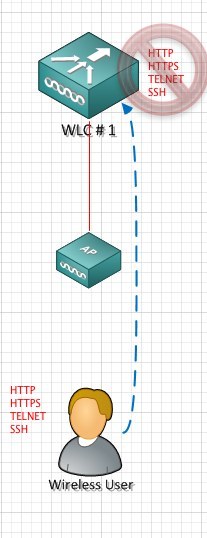
<p>When the management via wireless feature is disabled. Any wireless user (Admin or otherwise) will not be able to manage the Cisco WLC over wireless. HTTP,HTTPS,SSH and TELNET are &lsquo;blocked&rsquo; from the wireless medium.</p>
<h3>But, there is a catch:</h3>
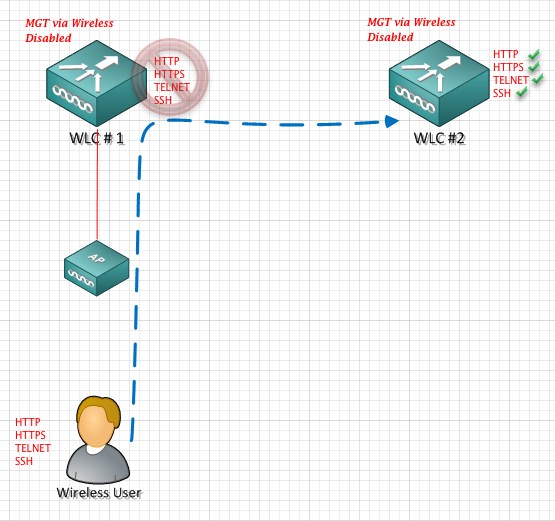
<p>When the management via wireless feature is DISABLE on the WLC, it only pertains to the WLC in which the wireless user is associated to. Wireless users can still manage (other) WLCs even though &ldquo;Management via Wireless&rdquo; is disabled.</p>
<h3><strong>Example:#1 &lsquo;Management via Wireless Disabled&rsquo;</strong></h3>
<p>The user in this example can not HTTP,HTTPS, SSH or TELNET into the controller management IP address in<span class="full-image-float-left ssNonEditable"><span><img src="http://www.my80211.com/storage/mgt.via.wireless.blog.post.1.jpg?__SQUARESPACE_CACHEVERSION=1299396179930" alt="" width="150" height="356" /></span></span> which they are associated to via the access point.</p>
<p>&nbsp;</p>
<p>&nbsp;</p>
<p>&nbsp;</p>
<p>&nbsp;</p>
<p>&nbsp;</p>
<p>&nbsp;</p>
<p>&nbsp;</p>
<p>&nbsp;</p>
<p>&nbsp;</p>
<p>&nbsp;</p>
<p>&nbsp;</p>
<p>&nbsp;</p>
<h3>&nbsp;<strong><br />Example:#2 &lsquo;Management via Wireless Disabled&rsquo;</strong></h3>
<p>The user can access other WLCs (the ones he is not associated to), even though the management over wireless is disabled.<span class="full-image-block ssNonEditable"><span><img src="http://www.my80211.com/storage/mgt.via.wireless.blog.post.2.jpg?__SQUARESPACE_CACHEVERSION=1299396648276" alt="" width="469" height="440" /></span></span></p>
<h3>CLI Config:</h3>
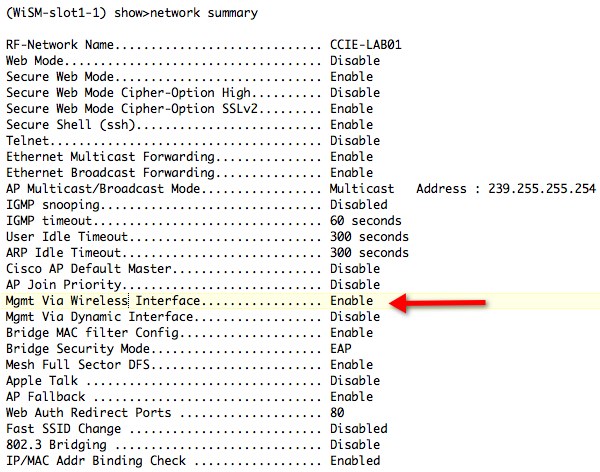
<p>In the CLI the &gt;<em>show network summary</em> yields the status of the management via wireless</p>
<p><span class="full-image-block ssNonEditable"><span><img src="http://www.my80211.com/storage/mgt.via.wireless.blog.post.3.jpg?__SQUARESPACE_CACHEVERSION=1299396841309" alt="" width="503" height="395" /></span></span></p>
<p>You can enable or disable management via wireless with the following CLI command:</p>
<p>&gt;<em> network mgmt-via-wireless</em></p>
<p>(WiSM-slot1-1) config&gt;network mgmt-via-wireless ?</p>
<p>enable&nbsp;&nbsp;&nbsp;&nbsp;&nbsp;&nbsp;&nbsp;&nbsp; Enables this setting.<br />disable&nbsp;&nbsp;&nbsp;&nbsp;&nbsp;&nbsp;&nbsp; Disables this setting.</p>
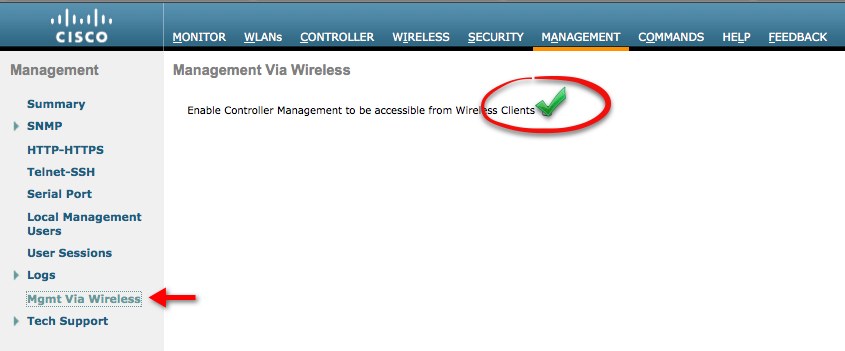
<h3>GUI Config:</h3>
<p>In the GUI GO -&gt;MANAGEMENT-&gt; MGT Via WIRLESS -&gt; (CHECK BOX)</p>
<p>&nbsp;<span class="full-image-block ssNonEditable"><span><img src="http://www.my80211.com/storage/mgt.via.wireless.blog.post.4.jpg?__SQUARESPACE_CACHEVERSION=1299397411525" alt="" /></span></span></p>]]></content></entry><entry><title>WLC: Predownload the Image to the Access Points from the controller CLI</title><id>http://www.my80211.com/cisco-wlc-cli-commands/2011/2/20/wlc-predownload-the-image-to-the-access-points-from-the-cont.html</id><link rel="alternate" type="text/html" href="http://www.my80211.com/cisco-wlc-cli-commands/2011/2/20/wlc-predownload-the-image-to-the-access-points-from-the-cont.html"/><author><name>George</name></author><published>2011-02-21T03:39:34Z</published><updated>2011-02-21T03:39:34Z</updated><content type="html" xml:lang="en-US"><![CDATA[<h3><strong><span style="color: black;">Why preload the image on the access points?</span></strong></h3>
<p><span style="color: black;">In a large wireless network, preloading the image to the access point may be something of <span class="full-image-float-right ssNonEditable"><span><img src="http://www.my80211.com/storage/1142.jpg?__SQUARESPACE_CACHEVERSION=1297920658979" alt="" /></span></span>interest to you. This process will lessen the overall downtime of your wireless network during the upgrade process. By preloading a new image to the access points in advance, negates the need to wait for your controllers to update the access points individually, which prolongs the upgrade process. </span></p>
<h3><strong><span style="color: black;">Normal Upgrade Process w/o preloading the access points</span></strong></h3>
<p><span style="color: black;">After a Cisco WLC is upgraded and rebooted. Access points drop into the discovery mode. When the access point rejoins the controller, it determines the access point code is different from the WLC. The access point will download the new code from the WLC. The access point upgrade process only takes a minute or so and then an additional minute for the access point to reboot and rejoin a WLC, so you are looking at 2 minutes of downtime for that access point.</span></p>
<p><span style="color: black;">The problem with this process, Cisco WLCs can not upload to all the access points at once, unless you have a 5508 WLC! The below list shows how many access points, can be upgraded concurrently, by controller model.</span></p>
<p><span style="color: black;">2100-XX&nbsp;&nbsp;&nbsp;&nbsp;&nbsp;&nbsp;&nbsp;&nbsp;&nbsp;&nbsp;&nbsp;&nbsp;&nbsp;&nbsp;&nbsp;&nbsp;&nbsp;&nbsp; 10 access point max<br />4402-XX&nbsp; &nbsp;&nbsp;&nbsp;&nbsp;&nbsp;&nbsp;&nbsp;&nbsp;&nbsp;&nbsp;&nbsp;&nbsp;&nbsp;&nbsp;&nbsp;&nbsp; 10 access point max<br />4404-XXX&nbsp;&nbsp;&nbsp;&nbsp;&nbsp;&nbsp;&nbsp;&nbsp;&nbsp;&nbsp;&nbsp;&nbsp;&nbsp;&nbsp;&nbsp;&nbsp; 10 access point max<br />WiSM&nbsp;&nbsp;&nbsp;&nbsp;&nbsp;&nbsp;&nbsp;&nbsp;&nbsp;&nbsp;&nbsp;&nbsp;&nbsp;&nbsp;&nbsp;&nbsp;&nbsp;&nbsp;&nbsp;&nbsp;&nbsp;&nbsp; 10 access point max (per controller)<br />5508-XXX&nbsp;&nbsp;&nbsp;&nbsp;&nbsp;&nbsp;&nbsp;&nbsp;&nbsp;&nbsp;&nbsp;&nbsp;&nbsp;&nbsp; 500 access point max</span></p>
<h3><strong><span style="color: black;">So, what is the big deal ?</span></strong></h3>
<p><span style="color: black;">Lets pick on a WiSM, shall we. Suppose you have 150 access points on a controller and the controller can only upgrade 10 access points concurrently at a time.&nbsp; Your controller would have to go through the upgrade process x15 times. This means access points would be offline not servicing clients until they take the upgrade. Potentially, it could take up to 15 minutes or longer to upgrade all 150 access points in this manner.</span></p>
<h3><strong><span style="color: black;">How Preloading The Image Speeds Up Your Upgrade Process and Limits Downtime</span></strong></h3>
<p><span style="color: black;">Certainly, if you have a controller model that is limited to the 10 AP download limit. The preload process will speed up your upgrade and lessen your downtime. I&rsquo;ll go into the details below, but how it works is simple. </span></p>
<p><span style="color: black;">You push the new code to the WLC. Then from the WLC you push the new code to the access points while still in a live environment. </span></p>
<h3><strong><span style="color: black;">PRELOAD STEPS</span></strong></h3>
<p><span style="color: black;">1.&nbsp;&nbsp;&nbsp;&nbsp; </span><span style="color: black;">Upgrade your WLC with your new image</span></p>
<p><span style="color: black;">2.&nbsp;&nbsp;&nbsp;&nbsp; </span><span style="color: black;">Preload the image to the access points</span></p>
<p><span style="color: black;">3.&nbsp;&nbsp;&nbsp;&nbsp; </span><span style="color: black;">Check image &ldquo;positions&rdquo; on the WLC and access points</span></p>
<h3><strong><span style="color: black;">Preload the image to the access points</span></strong></h3>
<p><span style="color: black;">You can do this via WCS or in the WLC CLI. I will show you the WLC CLI process.</span></p>
<p><em><span style="color: black;">(WiSM-slot1-1) &gt;config ap image predownload ?</span></em></p>
<p><em><span style="color: black;">primary&nbsp;&nbsp;&nbsp;&nbsp;&nbsp;&nbsp;&nbsp; Predownload an image to a Cisco AP from the controller's Primary image.<br />backup&nbsp;&nbsp;&nbsp;&nbsp;&nbsp;&nbsp;&nbsp;&nbsp; Predownload an image to a Cisco AP from the controller's Backup image.</span></em></p>
<p><span style="color: black;">You have 2 positions where you can install the code (primary or backup). I call them positions, they are spots in memory stored in the access point.&nbsp; The primary position is the image that will get loaded when the access point reboots. <br /></span></p>
<h3><strong><span style="color: black;">Check the current images and image positions on the controller and access points</span></strong></h3>
<p><span style="color: black;"><span style="text-decoration: underline;"><strong>ACCESS POINTS</strong></span> &ndash; Cisco access points (model dependency) allow you to store 2 images on the AP. You can use the following command to see the images on the access points and the position they are in. </span></p>
<p><em><span style="color: black;">(WiSM-slot8-2) &gt;show ap image all<br /></span></em></p>
<p><em><span style="color: black;">Total number of APs..............................2</span><span style="color: black;"><br />Number of APs</span><span style="color: black;"><br />Initiated............................................. 0</span><span style="color: black;"><br />Predownloading................................... 0<br />Completed predownloading................... 0<br />Not Supported..................................... 0<br />Failed to Predownload........................... 0</span></em></p>
<p><em><span style="color: black;">AP Name&nbsp;&nbsp;&nbsp;&nbsp;&nbsp;&nbsp;&nbsp;&nbsp;&nbsp;&nbsp;&nbsp; Primary Image&nbsp; &nbsp;&nbsp;&nbsp;&nbsp;Backup Image&nbsp;&nbsp; Status&nbsp;&nbsp;&nbsp;&nbsp;&nbsp;&nbsp;&nbsp;&nbsp;&nbsp; Version&nbsp;&nbsp;&nbsp;&nbsp;&nbsp;&nbsp;&nbsp; Next Retry Time&nbsp; Retry <br /></span></em></p>
<p><em><span style="color: black;">------------------ -------------- -------------- --------------- -------------- ---------------- ------------</span><span style="color: black;"><br />TEST1&nbsp;&nbsp;&nbsp;&nbsp;&nbsp; &nbsp;&nbsp;&nbsp;&nbsp;&nbsp;&nbsp;&nbsp;&nbsp; 6.0.196.159&nbsp;&nbsp;&nbsp; &nbsp;&nbsp;&nbsp;&nbsp;&nbsp;&nbsp;&nbsp;&nbsp;0.0.0.0&nbsp;&nbsp;&nbsp;&nbsp;&nbsp;&nbsp; &nbsp;&nbsp;&nbsp; &nbsp; &nbsp;&nbsp;&nbsp;&nbsp; None&nbsp;&nbsp;&nbsp;&nbsp;&nbsp;&nbsp;&nbsp;&nbsp;&nbsp;&nbsp;&nbsp; None&nbsp;&nbsp;&nbsp;&nbsp;&nbsp;&nbsp;&nbsp;&nbsp;&nbsp;&nbsp; NA&nbsp;&nbsp;&nbsp;&nbsp;&nbsp;&nbsp;&nbsp;&nbsp;&nbsp;&nbsp;&nbsp;&nbsp;&nbsp;&nbsp; NA&nbsp;&nbsp;&nbsp;&nbsp;&nbsp;&nbsp;&nbsp;&nbsp; </span></em></p>
<p><em><span style="color: black;">TEST2&nbsp;&nbsp;&nbsp;&nbsp; &nbsp;&nbsp;&nbsp;&nbsp;&nbsp;&nbsp;&nbsp;&nbsp;&nbsp;&nbsp;6.0.196.159&nbsp;&nbsp;&nbsp; &nbsp;&nbsp;&nbsp;&nbsp;&nbsp;&nbsp;&nbsp;&nbsp;0.0.0.0&nbsp;&nbsp;&nbsp;&nbsp;&nbsp;&nbsp;&nbsp; &nbsp;&nbsp;&nbsp;&nbsp;&nbsp;&nbsp;&nbsp;&nbsp;&nbsp;&nbsp;None&nbsp;&nbsp;&nbsp;&nbsp;&nbsp;&nbsp;&nbsp;&nbsp;&nbsp;&nbsp;&nbsp; None&nbsp;&nbsp;&nbsp;&nbsp;&nbsp;&nbsp;&nbsp;&nbsp;&nbsp;&nbsp; NA&nbsp;&nbsp;&nbsp;&nbsp;&nbsp;&nbsp;&nbsp;&nbsp;&nbsp;&nbsp;&nbsp;&nbsp;&nbsp;&nbsp; NA&nbsp;&nbsp;&nbsp;&nbsp;&nbsp;&nbsp;&nbsp; </span></em></p>
<p><span style="color: black;">*Primary Image &ndash; This is the image that loads when the AP is booted<br />*Backup Image &ndash; This is the image that is stored as a backup</span></p>
<p><span style="color: black;"><span style="text-decoration: underline;"><strong>CONTROLLERS</strong></span>&nbsp; -&nbsp; Cisco controllers allow you to store 2 images as well. You can see the images and their positions with the show boot command from the WLC CLI.</span></p>
<p><em><span style="color: black;">(WiSM-slot8-2) &gt;show boot</span></em></p>
<p><em><span style="color: black;">Primary Boot Image............................... Code 7.0.98.0 (active)<br />Backup Boot Image................................ Code 6.0.196.159</span></em></p>
<p><span style="color: black;"><br /></span></p>
<h3><strong><span style="color: black;">Caution</span></strong><span style="color: black;">&nbsp;</span></h3>
<p>When you upgrade your WLC the new image goes into the (active) position. If your intentions are to do the upgrade at a later time. It is important to &ldquo;swap&rdquo; the image from the primary location to the backup location. This is in case the controller reboots by accident. This goes for the access point images as well.&nbsp;</p>
<h3><strong><span style="color: black;">Controller and Access Point Image Swap</span></strong></h3>
<p><span style="color: black;"><strong>Access Point</strong> - Swapping the image can done by a single access point or by all access points<br /></span></p>
<p><em><span style="color: black;">(WiSM-slot8-2) &gt;config ap image swap all </span></em></p>
<p><em><span style="color: black;">(WiSM-slot8-2) &gt;show ap image all&nbsp;&nbsp;&nbsp;&nbsp;&nbsp;&nbsp; <br /></span></em></p>
<p><em><span style="color: black;">Total number of APs.............................. 2</span></em></p>
<p><em><span style="color: black;">Number of APs<br />Initiated............................................ 0<br />Predownloading.................................. 0<br />Completed predownloading.................. 2<br />Not Supported.................................... 0<br />Failed to Predownload.......................... 0</span></em></p>
<p><em><span style="color: black;">AP Name&nbsp;&nbsp;&nbsp;&nbsp;&nbsp;&nbsp;&nbsp;&nbsp;&nbsp;&nbsp;&nbsp; Primary Image&nbsp; Backup Image&nbsp;&nbsp; Status&nbsp;&nbsp;&nbsp;&nbsp;&nbsp;&nbsp;&nbsp;&nbsp;&nbsp; Version&nbsp;&nbsp;&nbsp;&nbsp;&nbsp;&nbsp;&nbsp; Next Retry Time&nbsp; Retry </span></em></p>
<p><em><span style="color: black;">------------------ -------------- -------------- --------------- -------------- ---------------- ------------</span><span style="color: black;"><br /></span></em></p>
<p><em><span style="color: black;">TEST1&nbsp;&nbsp;&nbsp;&nbsp;&nbsp;&nbsp;&nbsp;&nbsp;&nbsp;&nbsp;&nbsp;&nbsp;&nbsp;&nbsp;&nbsp;&nbsp;&nbsp;&nbsp;&nbsp;&nbsp;&nbsp;&nbsp;&nbsp; 7.0.98.0&nbsp;&nbsp;&nbsp;&nbsp;&nbsp; &nbsp;&nbsp;&nbsp;&nbsp;&nbsp;&nbsp;6.0.196.159&nbsp;&nbsp;&nbsp; Complete&nbsp;&nbsp;&nbsp;&nbsp;&nbsp;&nbsp;&nbsp; 7.0.98.0&nbsp;&nbsp;&nbsp;&nbsp;&nbsp;&nbsp; NA&nbsp;&nbsp;&nbsp;&nbsp;&nbsp;&nbsp;&nbsp;&nbsp;&nbsp;&nbsp;&nbsp;&nbsp;&nbsp;&nbsp; NA&nbsp;&nbsp;&nbsp;&nbsp;&nbsp;&nbsp;&nbsp;&nbsp; <br />TEST2&nbsp;&nbsp;&nbsp;&nbsp;&nbsp;&nbsp;&nbsp;&nbsp;&nbsp;&nbsp;&nbsp;&nbsp;&nbsp;&nbsp;&nbsp;&nbsp;&nbsp;&nbsp;&nbsp;&nbsp;&nbsp;&nbsp;&nbsp; 7.0.98.0&nbsp;&nbsp;&nbsp;&nbsp;&nbsp;&nbsp; &nbsp;&nbsp;&nbsp;&nbsp;&nbsp;6.0.196.159&nbsp;&nbsp;&nbsp; Complete&nbsp;&nbsp;&nbsp;&nbsp;&nbsp;&nbsp;&nbsp; 7.0.98.0&nbsp;&nbsp;&nbsp;&nbsp;&nbsp;&nbsp; NA&nbsp;&nbsp;&nbsp;&nbsp;&nbsp;&nbsp;&nbsp;&nbsp;&nbsp;&nbsp;&nbsp;&nbsp;&nbsp;&nbsp; NA&nbsp;&nbsp;&nbsp;&nbsp;&nbsp;&nbsp;&nbsp;&nbsp; </span></em></p>
<p><span style="color: black;">&nbsp;</span></p>
<p><span style="color: black;"><strong>Controller</strong>- Swapping the image on the controller<br /></span></p>
<p><em><span style="color: black;">(WiSM-slot8-2) &gt;config boot primary (backup)</span></em></p>
<p><em><span style="color: black;">(WiSM-slot8-2) &gt;show boot&nbsp;&nbsp;&nbsp;&nbsp;&nbsp;&nbsp;&nbsp;&nbsp;&nbsp;&nbsp; </span></em></p>
<p><em><span style="color: black;">Primary Boot Image............................... Code 7.0.98.0 (active)<br />Backup Boot Image................................ Code 6.0.196.159</span></em></p>
<h3><strong><span style="color: black;">Things you should know&hellip;</span></strong></h3>
<p><span style="color: black;">When you do a preload push </span><span style="color: black;">there is a maximum number of concurrent predownloads. It is limited to half the number of concurrent normal image downloads (10 normally / half is 5). The access points not taking the download will then receive a random timer between 180 and 600 seconds. So this means your 4400s will do a preload of 5 access points at a time. The other 95 receive back off timers.</span></p>
<h3><span style="color: black;"><strong>Dependency Homework</strong><br /></span></h3>
<p><span style="color: black;">Guidelines and Limitations for Predownloading Images (from controller manual)</span></p>
<p><span style="color: black;">Keep these guidelines in mind when you use image predownloading:</span></p>
<ul>
<li><span style="color: black;">Maximum predownload limit: The maximum number of concurrent predownloads is limited to half the number of concurrent normal image downloads on 4400 series controllers; it is limited to 25 concurrent downloads on 5500 series controllers. This limitation allows new access points to join the controller during image downloading.<br /></span></li>
<li><span style="color: black;">If you reach the predownload limit, access points that cannot get an image back off and wait for a time between 180 to 600 seconds and then re-attempt the predownload.<br /></span></li>
<li><span style="color: black;">For predownloading to be effective, all controllers (primary, secondary, and tertiary) that your access points can join should use the same images for primary and backup images. For example, if you have three controllers, all three should use software release x as the primary image and release y as the backup image. This consistency is important because some controllers reboot more slowly than others, and access points rejoin a controller as soon as they reboot. If a 4400 controller reboots before a 5500 controller, it is important that both controllers are running the same images in case an access point joins one rather than the other.<br /></span></li>
<li><span style="color: black;">Before you enter the predownload command, Cisco recommends that you change the active controller boot image to the backup image. This step ensures that if the controller reboots for some reason, it comes back up with the earlier running image, not the partially downloaded upgrade image.<br /></span></li>
<li><span style="color: black;">Access points with 16MB total available memory (1130 and 1240 access points) sometimes do not have enough free memory to download an upgrade image, and they automatically delete crash info files, radio files, and any backup images to free up space. However, this limitation does not affect the predownload process because the predownload image replaces any backup image on the access point.<br /></span></li>
<li><span style="color: black;">These access point models do not support predownloading of images: 1120, 1230, and 1310.</span></li>
</ul>
<p>&nbsp;</p>
<p>I hope this helps with yout predownload efforts !</p>]]></content></entry><entry><title>WLC:Generate Third Party Web Authentication Certificate for a WLC</title><id>http://www.my80211.com/cisco-wlc-cli-commands/2011/1/16/wlcgenerate-third-party-web-authentication-certificate-for-a.html</id><link rel="alternate" type="text/html" href="http://www.my80211.com/cisco-wlc-cli-commands/2011/1/16/wlcgenerate-third-party-web-authentication-certificate-for-a.html"/><author><name>George</name></author><published>2011-01-17T04:10:47Z</published><updated>2011-01-17T04:10:47Z</updated><content type="html" xml:lang="en-US"><![CDATA[<h3><strong>It&rsquo;s that time of year and our Cisco WLC Web Authentication Certificate is close to expiration.&nbsp;Certificates are not my strong point and its not often I have to deal with them outside of ACS and the controllers. So I wanted to document these steps for my benefit for next go around.</strong></h3>
<p>This is a step by step &ldquo;how to&rdquo; creating a CSR (Certificate Signing Request) with OPENSSL, processing a third-party certificate that is CHAINED and download it to the Cisco WLC.</p>
<h3><strong>Dependency Homework</strong></h3>
<p>Its always important to check your dependencies and NEVER assume.</p>
<p>1) WLC versions earlier than 5.1.151.0, web authentication certificates can be only device certificates and DO NOT support chained certificates, ONLY ROOT SIGNED certificates</p>
<p>2) WLC versions 5.1.151.0 and later support chained certificates (up to a level of 2)</p>
<p>3)&nbsp;&nbsp; ** Certificate Levels **</p>
<p>Level 0 &ndash; Use of only a server certificate on WLC<br />Level 1 &ndash; Use of server certificate on WLC and a CA root certificate<br />Level 2 &ndash; Use of server certificate on WLC, one single CA intermediate certificate, and a CA root certificate.<br />Level 3 -&nbsp; Use of server certificate on WLC, two CA intermediate certificate, and a CA root certificate.&nbsp;</p>
<p>4) Entrust does not support root signed certificates (unchained) as of 12/31/2010. Since my anchors are on 4.2.x, looks like I will be upgrading my controller code.</p>
<p>5) When anchoring, the remote and anchor controllers connect using EoIP tunnels. Below is a quick look at supported code levels . Although, Cisco will tell you its best practice to have your Anchors and Remote WLCs on the same version of code.</p>
<p>&nbsp;<span class="full-image-block ssNonEditable"><img src="http://www.my80211.com/storage/wlc.anchor.eoip.jpg?__SQUARESPACE_CACHEVERSION=1295232233494" alt="" /></span></p>
<h3><strong>Why a signed certificate on the Cisco Anchor WLC?</strong></h3>
<p>The Anchor WLC is configured with HTTPS. When a guest user connects to the wireless guest network they will be presented with a WLC self signed certificate or an expired certificate. As such, this will cause the &ldquo;please accept&rdquo; this certificate screen.</p>
<p>By installed a signed CA certificate, you negate this screen and users move directly to the accept screen. Its really a inconvenience to the end user.</p>
<h3><strong>OPENSSL</strong></h3>
<p>If this is your first time using OPENSSL, it could be a little intimidating, but it isn&rsquo;t really as bad as you think. Everything is scripted.</p>
<p>Before starting, you will need to download and unzip OPENSSL. You will notice a number of versions. I used windows version ,0.9.8.a to create my CSR. &nbsp;I unzipped OPENSSL in a folder off my C: drive</p>
<p>C:\openssl&gt;</p>
<p><a href="http://www.openssl.org/">http://www.openssl.org/</a></p>
<h3><strong>Generate a CSR</strong></h3>
<p>A CSR stands for certificate signing request. This is the first step in the certificate process.</p>
<p>After you have OPENSSL installed you want to launch openssl.exe. You then enter the following script.</p>
<p>1)&nbsp;&nbsp; C:\openssl\bin&gt;openssl.exe</p>
<p>OpenSSL&gt; req &ndash;new &ndash;newkey rsa:2048 &ndash;nodes &ndash;keyout mykey.pem &ndash;out myreq.pem<br /><strong>Note</strong>: The WLC supports a maximum key size of 2048</p>
<p>2)&nbsp;&nbsp; You will be presented with a number of questions. Your company name, state, country, common name etc.&nbsp;Its important to enter this information correctly. This data gets checked against the CA information on file. It is also important the CN (common name) matches the DNS A record for your virtual IP.</p>
<p><span class="full-image-block ssNonEditable"><img src="http://www.my80211.com/storage/virtual.ip.jpg?__SQUARESPACE_CACHEVERSION=1295233085634" alt="" /></span></p>
<p>&nbsp;</p>
<p>You will also be prompted to enter an optional password. This is important, as it adds an extra layer of security and prevents someone compiling the certificate without the password.</p>
<p><span style="color: #000000;">OpenSSL&gt;<strong>req &minus;new &minus;newkey rsa:2048 &minus;nodes &minus;keyout mykey.pem &minus;out myreq.pem</strong></span></p>
<p><span style="color: #000000;">Loading 'screen' into random state &minus; done Generating a 2048 bit RSA private key ................................................................++++++ ...................................................++++++</span></p>
<p><span style="color: black;">writing new private key to 'mykey.pem'<br /></span><span style="color: #000000;">&minus;&minus;&minus;&minus;&minus;<br /></span><span style="color: #000000;">You are about to be asked to enter information that will be incorporated into your certificate request.</span></p>
<p><span style="color: #000000;">What you are about to enter is what is called a Distinguished Name or a DN. There are quite a few fields but you can leave some blank</span></p>
<p><span style="color: #000000;">For some fields there will be a default value, If you enter '.', the field will be left blank.<br /></span><span style="color: #000000;">&minus;&minus;&minus;&minus;&minus;<br /></span><span style="color: #000000;">Country Name (2 letter code) [AU]:US<br /></span><span style="color: #000000;">State or Province Name (full name) [Some&minus;State]:TX<br /></span><span style="color: #000000;">Locality Name (eg, city) []:Houston<br /></span><span style="color: #000000;">Organization Name (eg, company) [Internet Widgits Pty Ltd]:Mycompany<br /></span><span style="color: #000000;">Organizational Unit Name (eg, section) []:IT<br /></span><span style="color: #000000;">Common Name (eg, YOUR name) []:guest.yourhospital.org<br /></span><span style="color: #000000;">Email Address []:it@mycompany.com</span></p>
<p><span style="color: #000000;">Please enter the following 'extra' attributes to be sent with your certificate request</span></p>
<p><span style="color: #000000;">A challenge password []:TESTEST<br /></span><span style="color: #000000;">An optional company name []:</span></p>
<p><span style="color: black;">OpenSSL&gt;</span></p>
<p>&nbsp;3)&nbsp;&nbsp; Once you are complete. You will find 2 files in the bin folder.</p>
<ol>
<li>mykey.pem</li>
<li>myreq.pem</li>
</ol>
<p>The mykey.pem is your portion of the CSR which will be used later. Keep this in a safe place.</p>
<p>The myreq.pem is your CSR ,which is sent to your CA. If you change the file type from .pem to .txt you will see something similar to this:</p>
<p>&nbsp;<span class="full-image-block ssNonEditable"><span><img src="http://www.my80211.com/storage/CERTIFCIATE.1.jpg?__SQUARESPACE_CACHEVERSION=1295234642486" alt="" /></span></span></p>
<p>4) The CA will reply with a digitally signed certificate chain. You will receive three certificates.</p>
<ol>
<li>Root Certificate</li>
<li>Intermediate Certificate</li>
<li>Device Certificate</li>
</ol>
<p>5)&nbsp;&nbsp; The next step, you will want to take the 3 certificates and change the extension to .txt.</p>
<p>Entrust.cer<br />L1Cchainroot.cer<br />L1Croot.cer</p>
<p>Once the extensions are converted to .txt. Open notepad and cut and paste the certificates in this order:</p>
<p><span><strong>&minus;&minus;&minus;&minus;&minus;&minus;BEGIN CERTIFICATE&minus;&minus;&minus;&minus;&minus;&minus;<br /></strong><strong>*Device cert*<br /></strong><strong>&minus;&minus;&minus;&minus;&minus;&minus;END CERTIFICATE&minus;&minus;&minus;&minus;&minus;&minus;<br /></strong><strong>&minus;&minus;&minus;&minus;&minus;&minus;BEGIN CERTIFICATE&minus;&minus;&minus;&minus;&minus;&minus;<br /></strong><strong>*Intermediate CA cert *<br /></strong><strong>&minus;&minus;&minus;&minus;&minus;&minus;END CERTIFICATE&minus;&minus;&minus;&minus;&minus;&minus;&minus;&minus;<br /></strong><strong>&minus;&minus;&minus;&minus;&minus;&minus;BEGIN CERTIFICATE&minus;&minus;&minus;&minus;&minus;&minus;<br /></strong><strong>*Root CA cert *<br /></strong><strong>&minus;&minus;&minus;&minus;&minus;&minus;END CERTIFICATE&minus;&minus;&minus;&minus;&minus;&minus;</strong></span></p>
<p><span class="full-image-block ssNonEditable"><span><img src="http://www.my80211.com/storage/wlc.cert.1.jpg?__SQUARESPACE_CACHEVERSION=1295234474925" alt="" /></span></span>&nbsp;**NOTE THESE ARE NOT REAL CERTIFICATES**</p>
<p>&nbsp;It is important you put the certs in the correct order -- device, intermediate, root.</p>
<ol>
<li>Device Certificate</li>
<li>Intermediate Certificate</li>
<li>Root Certificate</li>
</ol>
<p>&nbsp;Specific to Entrust &hellip; your cert order would be the following:</p>
<ol>
<li>Device Certificate ------------------ L1Croot</li>
<li>Intermediate Certificate-----------L1Cchainroot</li>
<li>Root Certificate----------------------Entrust</li>
</ol>
<p>&nbsp;**NOTE IF YOU OPEN THE ROOT CERTIFICATE THIS WILL CONTAIN YOUR CN (COMMON NAME) **</p>
<p>&nbsp;6)&nbsp;&nbsp; Save the file as All-certs.pem</p>
<p>&nbsp;7)&nbsp;&nbsp; In this step you will combine your mykey.pem and the All-certs.pem. Open up OPENSLL again. Enter the following:</p>
<p>C:\openssl\bin&gt;openssl.exe</p>
<p>OpenSSL&gt; pkcs12 -export -in All-certs.pem -inkey mykey.pem -out All-certs.p12 -clcerts -passin pass:TESTTEST -passout pass:TESTTEST</p>
<p>Loading 'screen' into random state - done</p>
<p>OpenSSL&gt; pkcs12 -in All-certs.p12 -out final-cert.pem -passin pass:TESTTEST -passout pass:TESTTEST</p>
<p>MAC verified OK</p>
<p>OpenSSL&gt;</p>
<p>**NOTE YOU ENTER THE PASSWORD YOU CREATED DURING THE CSR CREATION **</p>
<p>8)&nbsp;&nbsp; When you are done you will have 1 file, called final-cert.pem. This is the certificate you will download to your Anchor WLC.</p>
<p>9) Enter your WLC Security -&gt;Web Auth -&gt; Certificate</p>
<p>Check, check box &ldquo;Download SSL Certifciate&rdquo; and enter your TFTP information and your certificate password.</p>
<p><span class="full-image-block ssNonEditable"><span><img src="http://www.my80211.com/storage/webauth.jpg?__SQUARESPACE_CACHEVERSION=1295234921015" alt="" /></span></span></p>
<p>&nbsp;</p>]]></content></entry><entry><title>WLC: Schedule Reboot Of The WLC From The CLI</title><id>http://www.my80211.com/cisco-wlc-cli-commands/2010/10/21/wlc-schedule-reboot-of-the-wlc-from-the-cli.html</id><link rel="alternate" type="text/html" href="http://www.my80211.com/cisco-wlc-cli-commands/2010/10/21/wlc-schedule-reboot-of-the-wlc-from-the-cli.html"/><author><name>George</name></author><published>2010-10-22T01:46:36Z</published><updated>2010-10-22T01:46:36Z</updated><content type="html" xml:lang="en-US"><![CDATA[<h3><strong>Did you know you can schedule a reboot of the WLC in the CLI? This comes in handy if you don&rsquo;t have a WCS. Lets cover the different automatic reboots . Also this is only in newer code releases. This is not an option in 4.2 releases.</strong></h3>
<p>(Cisco_4402_WLC) &gt;reset system ?<span class="full-image-float-right ssNonEditable"><span><img src="http://www.my80211.com/storage/wism.jpg?__SQUARESPACE_CACHEVERSION=1287711825810" alt="" /></span></span><br /> at&nbsp;&nbsp;&nbsp;&nbsp;&nbsp;&nbsp;&nbsp;&nbsp;&nbsp;&nbsp;&nbsp;&nbsp; Reset the system at a specified time.<br /> in&nbsp;&nbsp;&nbsp;&nbsp;&nbsp;&nbsp;&nbsp;&nbsp;&nbsp;&nbsp;&nbsp;&nbsp; Reset the system after a specified delay.<br /> cancel&nbsp;&nbsp;&nbsp;&nbsp;&nbsp;&nbsp;&nbsp;&nbsp; Cancel a scheduled reset.<br /> notify-time&nbsp;&nbsp;&nbsp; Configures trap generation prior to scheduled resets.</p>
<h3><strong>Reset System In -&gt;</strong></h3>
<p>The (rest system in) command allows you to enter a specific time to have the controller reboot. Also you can call out what image (primary / backup) to load.</p>
<p>(Cisco_4402_WLC) &gt;reset system in 00:01:30 image no-swap reset-aps save-config<br /> System reset is scheduled for Oct 16 22:58:56 2010.<br /> Current local time and date is Oct 16 22:57:26 2010.<br /> Trap will not be generated as total delay is less than the trap time.<br /> Use 'reset system cancel' to cancel the reset.<br /> Configuration will be saved before the system reset.<br /> (Cisco_4402_WLC) &gt;</p>
<p>&nbsp;</p>
<h3><strong>Rest System At -&gt;</strong></h3>
<p>The (rest system at) command allows you to enter a specific date and time to have the controller reboot.&nbsp; Like reset system in, you can call out the image as well.</p>
<p>&nbsp;(Cisco_4402_WLC) &gt;reset system at 2010-10-16 23:05:00 image no-swap reset-aps save-config<br /> System reset is scheduled for Oct 16 23:05:00 2010.<br /> Current local time and date is Oct 16 23:02:06 2010.<br /> Trap will not be generated as total delay is less than the trap time.<br /> Use 'reset system cancel' to cancel the reset.<br /> Configuration will be saved before the system reset.<br /> (Cisco_4402_WLC) &gt;</p>
<p>&nbsp;</p>
<h3><strong>Reset System Cancel -&gt;</strong></h3>
<p>Of course, if you scheduled a system reset and you need to cancel it. You would need to apply the reset system cancel command</p>
<p>(Cisco_4402_WLC) &gt;reset system ?<br /> at&nbsp;&nbsp;&nbsp;&nbsp;&nbsp;&nbsp;&nbsp;&nbsp;&nbsp;&nbsp;&nbsp;&nbsp; Reset the system at a specified time.<br /> in&nbsp;&nbsp;&nbsp;&nbsp;&nbsp;&nbsp;&nbsp;&nbsp;&nbsp;&nbsp;&nbsp;&nbsp; Reset the system after a specified delay.<br /> cancel&nbsp;&nbsp;&nbsp;&nbsp;&nbsp;&nbsp;&nbsp;&nbsp; Cancel a scheduled reset.<br /> notify-time&nbsp;&nbsp;&nbsp; Configures trap generation prior to scheduled resets.</p>
<p>&nbsp;</p>
<h3><strong>Show Reset -&gt;</strong></h3>
<p>To double check your schedule reset you can do the &ldquo;show rest&rdquo; command. It outlines the data and events.</p>
<p>(Cisco_4402_WLC) &gt;show reset<br /> System reset is scheduled for Oct 18 10:00:00 2010.<br /> Current local time and date is Oct 16 23:28:15 2010.<br /> All APs will also be reset.<br /> A trap will be generated 10 minutes before each scheduled system reset.<br /> Configuration will be saved before the system reset.</p>
<p>&nbsp;</p>
<p>&nbsp;</p>]]></content></entry><entry><title>WLC: Debug Transfer Trace</title><id>http://www.my80211.com/cisco-wlc-cli-commands/2010/10/19/wlc-debug-transfer-trace.html</id><link rel="alternate" type="text/html" href="http://www.my80211.com/cisco-wlc-cli-commands/2010/10/19/wlc-debug-transfer-trace.html"/><author><name>George</name></author><published>2010-10-20T01:43:19Z</published><updated>2010-10-20T01:43:19Z</updated><content type="html" xml:lang="en-US"><![CDATA[<h3><strong>The WLC has a wealth of debug commands. I ran into image problems in my lab this weekend. &nbsp;If you run into TFTP or IMAGE transfer issues a handy debug is the debug transfer trace / tftp enable.</strong></h3>
<p>If you have issues contacting the TFTP server from the WLC or image mounting issues this debug will<span class="full-image-float-right ssNonEditable"><span><img style="width: 300px;" src="http://www.my80211.com/storage/cisco_wlc4404.gif?__SQUARESPACE_CACHEVERSION=1287538704954" alt="" /></span></span>&nbsp;alert you as to the issue.</p>
<p><strong>debug transfer trace enable</strong></p>
<p><strong> </strong></p>
<p><strong>debug transfer tftp enable</strong></p>
<p>Here is an example of the debug transfer trace:</p>
<p>(Cisco_4402_WLC) &gt;debug transfer trace enable <br /> *Oct 17 21:44:25.925: RESULT_STRING: TFTP Code transfer starting.<br /> *Oct 17 21:44:25.925: RESULT_CODE:1<br /> *Oct 17 21:44:29.928: Locking tftp semaphore, pHost=10.10.53.24 pFilename=/SWISMK9-6-0-199-4.aes<br /> *Oct 17 21:44:29.929: Semaphore locked, now unlocking, pHost=10.10.53.24 pFilename=/SWISMK9-6-0-199-4.aes<br /> *Oct 17 21:44:29.929: Semaphore successfully unlocked, pHost=10.10.53.24 pFilename=/SWISMK9-6-0-199-4.aes<br /> *Oct 17 21:52:01.997: tftp rc=0, pHost=10.10.53.24 pFilename=/SWISMK9-6-0-199-4.ae pLocalFilename=/mnt/download/local.tgz<br /> *Oct 17 21:52:01.998: tftp = 6, file_name=/SWISMK9-6-0-199-4.aes, ip_address=10.10.53.24, msg=Unknown error - refer to log<br /> *Oct 17 21:52:01.998: upd_get_code = 6 (target=268435457 msg=Unknown error - refer to log)<br /> *Oct 17 21:52:01.999: RESULT_STRING: TFTP receive complete... extracting components.<br /> *Oct 17 21:52:01.999: RESULT_CODE:6<br /> *Oct 17 21:52:07.022: RESULT_STRING: Executing Product Check TLV.<br /> *Oct 17 21:52:07.023: RESULT_STRING: Executing init script.<br /> *Oct 17 21:52:07.131: RESULT_STRING: Executing backup script.<br /> *Oct 17 21:53:29.209: RESULT_STRING: Writing new RTOS to flash disk.<br /> *Oct 17 21:53:31.577: RESULT_STRING: Writing new Code to flash disk.<br /> *Oct 17 21:53:56.451: RESULT_STRING: Writing new APIB to flash disk.<br /> *Oct 17 21:55:05.911: RESULT_STRING: Executing install_apib script.<br /> *Oct 17 21:56:52.738: RESULT_STRING: Executing fini script.<br /> *Oct 17 21:56:53.037: RESULT_STRING: TFTP File transfer is successful.<br /> Reboot the controller for update to complete.<br /> &nbsp;Optionally, pre-download the image to APs before rebooting to reduce network downtime.<br /> *Oct 17 21:56:53.037: RESULT_CODE:11<br /> *Oct 17 21:56:57.039: ummounting: &lt;umount /mnt/download/&gt;&nbsp; cwd&nbsp; = /mnt/application<br /> *Oct 17 21:56:57.077: finished umounting<br /> (Cisco_4402_WLC) &gt;</p>]]></content></entry></feed>