<?xml version="1.0" encoding="UTF-8"?>
<!--Generated by Squarespace V5 Site Server v5.13.156 (http://www.squarespace.com) on Mon, 20 May 2013 03:43:39 GMT--><feed xmlns="http://www.w3.org/2005/Atom" xmlns:dc="http://purl.org/dc/elements/1.1/"><title>802.11 LABS</title><subtitle>802.11 LABS</subtitle><id>http://www.my80211.com/80211/</id><link rel="alternate" type="application/xhtml+xml" href="http://www.my80211.com/80211/"/><link rel="self" type="application/atom+xml" href="http://www.my80211.com/80211/atom.xml"/><updated>2011-10-25T00:42:00Z</updated><generator uri="http://five.squarespace.com/" version="Squarespace V5 Site Server v5.13.156 (http://www.squarespace.com)">Squarespace</generator><entry><title>OmniPeek Remote Assistant (Cisco TAC)</title><id>http://www.my80211.com/80211/2011/10/24/omnipeek-remote-assistant-cisco-tac.html</id><link rel="alternate" type="text/html" href="http://www.my80211.com/80211/2011/10/24/omnipeek-remote-assistant-cisco-tac.html"/><author><name>George</name></author><published>2011-10-25T00:41:46Z</published><updated>2011-10-25T00:41:46Z</updated><content type="html" xml:lang="en-US"><![CDATA[<h3>Arron Leonard from Cisco TAC released a great post about ORA on CSC.</h3>
<h2>OmniPeek Remote Assistant</h2>
<div class="jive-content-header-version">VERSION 4&nbsp;                 <a title="Click to view document history" href="https://supportforums.cisco.com/docs/DOC-19138/diff?secondVersionNumber=4"><img class="jive-icon-search jive-icon-sml" src="https://supportforums.cisco.com/4.5.4/images/transparent.png" alt="Click to view document history" /></a></div>
<div class="jive-content-body">
<div class="jive-rendered-content">
<div>
<p style="margin-bottom: .0001pt; line-height: normal;"><strong>Omnipeek</strong><strong> Remote Assistant (ORA)</strong></p>
<p style="margin-bottom: .0001pt; line-height: normal;">Cisco  TAC can provide the Omnipeek Remote Assistant application to assist in  performing wireless packet captures. The tool will capture wireless  packets and encrypt them for processing by the TAC. A full version of  Omnipeek Enterprise is required to decrypt and analyze the capture  files.</p>
<p style="min-height: 8pt; height: 8pt; padding: 0px;">&nbsp;</p>
<p style="margin-bottom: .0001pt; line-height: normal;"><strong>Installation</strong></p>
<p style="margin-bottom: .0001pt; line-height: normal;">You  should receive a ZIP file from TAC &ndash; such as &ldquo;ora131Cisco.zip&rdquo; (the  filename may change with different release versions). Open this file and  Navigate to the &ldquo;OmniPeek Remote Assistant&rdquo; folder &ndash; run the installer  &ldquo;ora131.exe&rdquo; and follow the installation instructions.</p>
<p style="min-height: 8pt; height: 8pt; padding: 0px;">&nbsp;</p>
<p style="margin-bottom: .0001pt; line-height: normal;"><strong>Supported Wireless Adapters and Drivers</strong></p>
<p style="margin-bottom: .0001pt; line-height: normal;">Capturing  Wireless Packets with ORA requires the use of supported Wireless  Network Adapters along with the appropriate driver version. To view a  complete list of supported adapters and drivers, please see:</p>
<p style="min-height: 8pt; height: 8pt; padding: 0px;">&nbsp;</p>
<p style="margin-bottom: .0001pt; line-height: normal;"><a class="jive-link-external-small" href="http://www.wildpackets.com/support/downloads/drivers">http://www.wildpackets.com/support/downloads/drivers</a></p>
<p style="min-height: 8pt; height: 8pt; padding: 0px;">&nbsp;</p>
<p style="margin-bottom: .0001pt; line-height: normal;">In  most cases, the Ralink USB adapters will be the easiest to install -  and, because you can install multiple USB adapters on a single laptop -  they are the best way to get a multichannel capture.&nbsp; The following  Ralink adapters have been tested by Cisco TAC:</p>
<p style="min-height: 8pt; height: 8pt; padding: 0px;">&nbsp;</p>
<p>Linksys WUSB600N (V1 and V2), Linksys AE1000,<span class="active_link">ALFA AWUS051NH</span></p>
<p style="min-height: 8pt; height: 8pt; padding: 0px;">&nbsp;</p>
<p style="margin-bottom: .0001pt; line-height: normal;"><strong>Driver Installation for Linksys USB600N with Windows XP</strong></p>
<div></div>
<div>1.  TAC can provide the OmniPeek driver for the Ralink USB adapters.&nbsp; You  should receive a ZIP file &ldquo;RALINKUSB-1_4_0_18.ZIP&rdquo;. There will be 2  folders in the archive -- &ldquo;Win2kXP&rdquo; for 32-bit Windows and &ldquo;WinXPx64&rdquo;  for 64-bit Windows. Extract the contents of the appropriate folder for  your Operating System to a specified location.</div>
<p><a href="https://supportforums.cisco.com/servlet/JiveServlet/showImage/102-19138-4-65237/image001.png"><img class="jive-image" src="https://supportforums.cisco.com/servlet/JiveServlet/downloadImage/102-19138-4-65237/357-119/image001.png" alt="image001.png" width="357" height="119" /></a></p>
<p style="min-height: 8pt; height: 8pt; padding: 0px;">&nbsp;</p>
2. Insert the Linksys USB600N adapter.
<p style="padding-left: 30px;">a.  If this is the first time using the adapter on the workstation,  Windows&nbsp; will start the New Hardware Wizard. Do not search for a driver&nbsp;  automatically and click Next. Skip to step 3.</p>
<p style="padding-left: 30px;">b.  If you have previously installed the Linksys USB600N on your&nbsp;  workstation, you will need to change the driver to the Omnipeek  version.&nbsp; Go to Start &gt; Control Panel &gt; Network Connections and  Right Click&nbsp; on the Linksys adapter and click Properties. In this  example, the&nbsp; interface is &ldquo;Wireless Network Connection 3&rdquo;.</p>
<p><a href="https://supportforums.cisco.com/servlet/JiveServlet/showImage/102-19138-4-65239/image003.png"><img class="jive-image" src="https://supportforums.cisco.com/servlet/JiveServlet/downloadImage/102-19138-4-65239/413-212/image003.png" alt="image003.png" width="413" height="212" /></a></p>
<p style="margin-top: 0in; margin-right: 0in; margin-bottom: .0001pt; margin-left: .25in; line-height: normal;">Under  the General Tab, Click the &ldquo;Configure&hellip;&rdquo; button, and then click on the  Driver Tab &gt; Update Driver. This will prompt the Hardware Update  Wizard.</p>
<p style="min-height: 8pt; height: 8pt; padding: 0px;">&nbsp;</p>
3.  Select &ldquo;Install from a list or specific location (Advanced)&rdquo; and click  Next. Select &ldquo;Search for the best driver in these locations.&rdquo;, include  the location of your extracted driver files and click Next:
<p><a href="https://supportforums.cisco.com/servlet/JiveServlet/showImage/102-19138-4-65240/image004.png"><img class="jive-image" src="https://supportforums.cisco.com/servlet/JiveServlet/downloadImage/102-19138-4-65240/449-351/image004.png" alt="image004.png" width="449" height="351" /></a></p>
4.  Windows will now search and install the Omnipeek driver. If you receive  the following warning message, click &ldquo;Continue Anyway&rdquo;.
<p><a href="https://supportforums.cisco.com/servlet/JiveServlet/showImage/102-19138-4-65241/image006.png"><img class="jive-image" src="https://supportforums.cisco.com/servlet/JiveServlet/downloadImage/102-19138-4-65241/397-321/image006.png" alt="image006.png" width="397" height="321" /></a></p>
5.&nbsp; The driver installation should complete and the adapter is now ready for capturing packets with ORA.
<p style="min-height: 8pt; height: 8pt; padding: 0px;">&nbsp;</p>
<p style="margin-bottom: .0001pt; line-height: normal;"><strong>Running Omnipeek Remote Assistant</strong></p>
<p style="min-height: 8pt; height: 8pt; padding: 0px;">&nbsp;</p>
<p style="margin-bottom: .0001pt; line-height: normal;">If  the correct driver isn&rsquo;t loaded, ORA may appear to work, but not  provide the option to select the desired channel to monitor. The Channel  cell will read &lsquo;Ethernet&rsquo; or &lsquo;Wireless&rsquo; and not offer the option to  select a channel:</p>
<p style="min-height: 8pt; height: 8pt; padding: 0px;">&nbsp;</p>
<p><a href="https://supportforums.cisco.com/servlet/JiveServlet/showImage/65242/image007.png"><img class="jive-image" src="https://supportforums.cisco.com/servlet/JiveServlet/downloadImage/65242/image007.png" alt="image007.png" /></a></p>
<p style="min-height: 8pt; height: 8pt; padding: 0px;">&nbsp;</p>
<p style="margin-bottom: .0001pt; line-height: normal;"><strong>Capture Settings</strong></p>
<p style="margin-bottom: .0001pt; line-height: normal;">Select  the desired adapter(s) to perform the capture and indicate the desired  channel. If you have multiple supported adapters installed you can  capture on multiple channels simultaneously (but you cannot mix wired  and wireless interfaces at the same time). You can select either an  802.11b/g channel or 802.11a channel in the dropdown. You can select 40  MHz 802.11n channels using the (n40l) or (n40h) options. The n40l will  be the selected channel and adjacent lower channel, while n40h will be  the selected channel and adjacent higher channel.</p>
<p><a href="https://supportforums.cisco.com/servlet/JiveServlet/showImage/65243/image008.png"><img class="jive-image" src="https://supportforums.cisco.com/servlet/JiveServlet/downloadImage/65243/image008.png" alt="image008.png" /></a></p>
<p style="min-height: 8pt; height: 8pt; padding: 0px;">&nbsp;</p>
<p style="margin-bottom: .0001pt; line-height: normal;"><strong>File Properties</strong></p>
<p style="margin-bottom: .0001pt; line-height: normal;">Select  the folder you would like to store the capture files in. You can then  also specify the file rollover size. Each new filename will include a  timestamp so data will not be overwritten.</p>
<p style="min-height: 8pt; height: 8pt; padding: 0px;">&nbsp;</p>
<p style="margin-bottom: .0001pt; line-height: normal;"><strong>Capture Control</strong></p>
<p style="margin-bottom: .0001pt; line-height: normal;">If  you have selected correct adapter/channel settings, you will now be  able to click the Start/Stop buttons at the bottom. You will not be able  to see the packets, but you will see the counters incrementing. Click  Stop when finished.</p>
<p style="min-height: 8pt; height: 8pt; padding: 0px;">&nbsp;</p>
<p style="margin-bottom: .0001pt; line-height: normal;"><strong>Uploading the files to TAC</strong></p>
<p style="margin-bottom: .0001pt; line-height: normal;"><strong> </strong></p>
<p style="margin-bottom: .0001pt; line-height: normal;">If the capture file(s) are too large for email, you can upload them to your TAC Service Request:</p>
<p style="min-height: 8pt; height: 8pt; padding: 0px;">&nbsp;</p>
<p style="margin-bottom: .0001pt; line-height: normal;"><a class="jive-link-external-small" href="https://tools.cisco.com/ServiceRequestTool/query/">https://tools.cisco.com/ServiceRequestTool/query/</a></p>
<p style="min-height: 8pt; height: 8pt; padding: 0px;">&nbsp;</p>
<p style="margin-bottom: .0001pt; line-height: normal;">Enter your SR Number, and then click on File Upload.</p>
</div>
</div>
</div>]]></content></entry><entry><title>Wireless Sniffing in Windows 7 with Netmon 3.4</title><id>http://www.my80211.com/80211/2011/9/2/wireless-sniffing-in-windows-7-with-netmon-34.html</id><link rel="alternate" type="text/html" href="http://www.my80211.com/80211/2011/9/2/wireless-sniffing-in-windows-7-with-netmon-34.html"/><author><name>George</name></author><published>2011-09-02T18:13:50Z</published><updated>2011-09-02T18:13:50Z</updated><content type="html" xml:lang="en-US"><![CDATA[<div class="jive-rendered-content">
<h3><span class="jive-username-link jiveTT-hover-user">I leeched this from the CSC forum. This was posted by Aaron Leonard. Aaron goes through the steps of turning your WIN7 into a sniffer.&nbsp;</span></h3>
<p>With  Microsoft Network Monitor (Netmon) 3.4, you can now perform some decent  802.11a/b/g (and maybe 11n) wireless sniffing in Windows 7, using your  standard wireless adapter.&nbsp; The file saved from Netmon can be read by  latest bleeding edge (1.5.0) Wireshark, though not in OmniPeek.&nbsp; Note  that, even though Netmon 3.4 is supported with XP SP3, it supports  wireless sniffing only if running Win7 (and presumably Vista.)</p>
<p>I've tested with the following adapters/drivers:</p>
<ul>
<li>An Intel 6300 running drivers 13.2.1.5 and 13.5.0.6.&nbsp; This adapter works well with 11a/g but does not support 11n.&nbsp; </li>
<li>A  Linksys WUSB600Nv1 with Ralink driver 3.0.10.0.&nbsp; This driver says that  it supports 11n (which function I didn't test).&nbsp; It seemed to report all  packets as having an RSSI of -50, and as being of data rate "3.5 Mbps".</li>
<li>An Atheros AR9285 with driver 8.0.0.258.&nbsp; Driver reports 11n support (not tested.)&nbsp; RSSI values and data rates look sound.</li>
<li>A  Cisco CB21AG with Atheros driver 1.0.0.120 - this also reported weird  data rates (1Mbps showed up as "116 Mbps" and 11 Mbps as "124&nbsp;&nbsp;&nbsp;&nbsp;  Mbps".)</li>
</ul>
<p style="min-height: 8pt; height: 8pt; padding: 0px;">&nbsp;</p>
<h3>Install Netmon 3.4</h3>
<p><a class="jive-link-external-small" href="http://www.microsoft.com/downloads/details.aspx?familyid=983b941d-06cb-4658-b7f6-3088333d062f&amp;displaylang=en">Download Netmon 3.4 from Microsoft</a>.&nbsp; If running Win7 64bit, get and install NM34_x64.exe.&nbsp; You'll have to log off and back on again after installing.</p>
<p style="min-height: 8pt; height: 8pt; padding: 0px;"><strong>Sniff wireless packets from a channel</strong></p>
<p>Note:  if using PROSet for Win7, set it to "Use Windows to Manage WiFi".&nbsp;  Otherwise, PROSet is apt to take control of the adapter out from under  Netmon.</p>
<p style="min-height: 8pt; height: 8pt; padding: 0px;">&nbsp;</p>
<p>Launch Netmon.&nbsp; Check the wireless adapter of interest, and uncheck the others.</p>
<p style="min-height: 8pt; height: 8pt; padding: 0px;">&nbsp;</p>
<p><a href="https://supportforums.cisco.com/servlet/JiveServlet/showImage/102-16398-5-47607/Netmon1.jpg"><img class="jive-image jive-image-thumbnail" src="https://supportforums.cisco.com/servlet/JiveServlet/downloadImage/102-16398-5-47607/450-285/Netmon1.jpg" alt="Netmon1.jpg" width="450" height="285" /></a></p>
<p style="min-height: 8pt; height: 8pt; padding: 0px;">&nbsp;</p>
<p>Click  the New Capture button, then the Capture Settings button.&nbsp; This pops up  the Capture Settings window.&nbsp; Highlight the adapter of interest and  click Properties which pops up the Network Interface Configuration  window.</p>
<p style="min-height: 8pt; height: 8pt; padding: 0px;">&nbsp;</p>
<p><a href="https://supportforums.cisco.com/servlet/JiveServlet/showImage/102-16398-5-47608/Netmon2.jpg"><img class="jive-image jive-image-thumbnail" src="https://supportforums.cisco.com/servlet/JiveServlet/downloadImage/102-16398-5-47608/450-285/Netmon2.jpg" alt="Netmon2.jpg" width="450" height="285" /></a></p>
<p style="min-height: 8pt; height: 8pt; padding: 0px;">&nbsp;</p>
<p>In  the Network Interface Configuration window, click [Scanning Options].&nbsp;  This pops up the WiFi Scanning Options window.&nbsp; Check Switch to Monitor  Mode.&nbsp; Select the Select a layer and channel button.&nbsp; Select the band  and channel of interest.&nbsp; Click [Apply].&nbsp; Important: do not click [Close  and Return to Local Mode], but keep the WiFi Scanning Options window up  all the time you're capturing the sniff.</p>
<p style="min-height: 8pt; height: 8pt; padding: 0px;">&nbsp;</p>
<p><a href="https://supportforums.cisco.com/servlet/JiveServlet/showImage/102-16398-5-47609/Netmon3.jpg"><img class="jive-image" src="https://supportforums.cisco.com/servlet/JiveServlet/downloadImage/102-16398-5-47609/449-414/Netmon3.jpg" alt="Netmon3.jpg" width="449" height="414" /></a></p>
<p style="min-height: 8pt; height: 8pt; padding: 0px;">&nbsp;</p>
<p>Now  (keeping the WiFi Scanning Options window open), go back to the Network  Interface Configuration window and click [OK] to get rid of it.&nbsp;  [Close] the Capture Settings window.&nbsp; Back in the main Network Monitor  window, click Start.</p>
<p style="min-height: 8pt; height: 8pt; padding: 0px;">This  should now cause NetMon to capture all wireless frames.&nbsp; Sometimes&nbsp;  though it will just sit there and not capture any frames.&nbsp; When this&nbsp;  happens, try restarting NetMon, disabling/reenabling the adapter, etc.</p>
<p style="min-height: 8pt; height: 8pt; padding: 0px;">&nbsp;</p>
<p>When done, click [Stop] and use File -&gt; Save as to save the .CAP file.</p>
<p style="min-height: 8pt; height: 8pt; padding: 0px;">&nbsp;</p>
<h3>Analyze with Wireshark</h3>
<p>Wireshark  up through 1.4.x cannot grok a Netmon 2 format file.&nbsp; However, latest  development Wireshark (1.5.0 and above) can.&nbsp; I'm using Wireshark 1.5.1.</p>
<p style="min-height: 8pt; height: 8pt; padding: 0px;">&nbsp;</p>
<p><a href="https://supportforums.cisco.com/servlet/JiveServlet/showImage/102-16398-5-47610/wshark.gif"><img class="jive-image jive-image-thumbnail" src="https://supportforums.cisco.com/servlet/JiveServlet/downloadImage/102-16398-5-47610/450-335/wshark.gif" alt="wshark.gif" width="450" height="335" /></a></p>
<h3><br />Problems</h3>
<ul>
<li>NetMon  recently just stopped being able to see my wireless adapter - it simply  was not present in the Netmon start page, even though it was up and  working fine.&nbsp; Rebooting did not help.&nbsp; Uninstalling Netmon Parsers,  then Netmon, then reinstalling NetMon 3.4, then logging off, then  logging back on, did work.</li>
</ul>
</div>]]></content></entry><entry><title>802.11: Null Data Frames</title><id>http://www.my80211.com/80211/2009/12/5/80211-null-data-frames.html</id><link rel="alternate" type="text/html" href="http://www.my80211.com/80211/2009/12/5/80211-null-data-frames.html"/><author><name>George</name></author><published>2009-12-05T08:33:04Z</published><updated>2009-12-05T08:33:04Z</updated><content type="html" xml:lang="en-US"><![CDATA[<p><a title="Subscribe to my feed" rel="alternate" type="application/rss+xml" href="http://feeds.feedburner.com/my80211/feeds"><img style="border: 0;" src="http://www.feedburner.com/fb/images/pub/feed-icon32x32.png" alt="" /></a></p>
<h3>I was speaking to a friend last evening on the topic of client troubleshooting. The discussion came up about roaming and roaming aggressiveness. We talked about the different aspects of client behavior and the discussion turned into an 802.11 frame discussion. More specifically&nbsp;the NULL frame.</h3>
<p>The Null Data Frame is a very interesting frame. In fact, most folks overlook these frames, perhaps because they don&rsquo;t know their importance. Just a few months ago I was troubleshooting a client issue<span class="full-image-float-right ssNonEditable"><span><img style="width: 400px;" src="http://www.my80211.com/storage/psm1.gif?__SQUARESPACE_CACHEVERSION=1260001590189" alt="" /></span></span>&nbsp;and the NULL frame confirmed by idea and backed my findings as it pertained to a wireless issue I was troubleshooting</p>
<p>Lets look at the NULL frame and it's importance.&nbsp;</p>
<p>The Null Data Frame is a control frame. It is only transmitted by a STA (wireless client). Access points do not transmit these frames. It carry&rsquo;s no data payload. In fact, the only purpose of this frame (by standard) is to carry the power management bit in the frame controlled field. The power management bit will be either "0" zero or "1" one.&nbsp;</p>
<p>When the STA sends a power management bit of "0" to the access point in which it is associated to, it is the STAs way of informing the access point that the STA is in an active power state (awake) and transmission of frames from access point to STA should be normal.&nbsp;&nbsp;</p>
<p>When the STA sends a power management bit of "1" to the access point in which it is associated to. This is informing the access point that the STA is going offline and any frames that come into the access point for this STA should be buffered at the access point till the STA returns and sends a NULL frame of "0", active state.&nbsp;</p>
<p>A text example of the exchange:&nbsp;</p>
<p>STA ---NULL FRAME "0"-----&gt;&nbsp; AP "Client says to the AP: Hey AP I&rsquo;m online send me data"</p>
<p>&nbsp;</p>
<p>STA ---NULL FRAME "1"-----&gt;&nbsp; AP "Client says to the AP: Hey AP buffer any transmissions coming in for me. Ill be back in a bit (no pun intended)"</p>
<p>&nbsp;</p>
<p>So why would a client go offline and what is the importance !?!?! Its very important. Lets talk through a few examples.&nbsp;</p>
<p>There are two main reasons why a STA will go offline, or send a power man bit of "1" to an access point.</p>
<p><span style="font-size: 110%;"><strong>Power Save Mode</strong></span>: PSM allows a STA to go into "sleep or doze" mode. PSM essentially turns off the NIC radio for short burst to conserve battery power for a device. You will notice significant power conservation and longer battery life when PSM is enabled. VoIP phones, PDAs and other small battery form factor devices benefits from PSM. A word of *caution*, be aware that some applications can suffer from aggressive power save mode options.&nbsp;</p>
<p><strong style="font-size: 110%;">Active/Passive Scanning:</strong> The other reason why a STA will inform an access point to buffer its frames by sending a power man bit of "1" is when it&rsquo;s ready to roam. Suppose a client has hit its roaming threshold and is seeking out another access point to associate to. In order to seek out other access points in the area it has to go off channel. By doing so, the STA tells the AP, buffer the frames man, ill be back for them in a bit!</p>
<p>Example:</p>
<p>The STA is on AP TEST, AP test is on channel 1</p>
<p>The client will send a NULL FRAME to the access point with the man bit of 1. The STA goes offline and floods channels 2,3,4,5,6,7,8,9,10,11 (depending on configuration of the client of course) with probe request looking for other APs.</p>
<p>Lets look at a packet capture:</p>
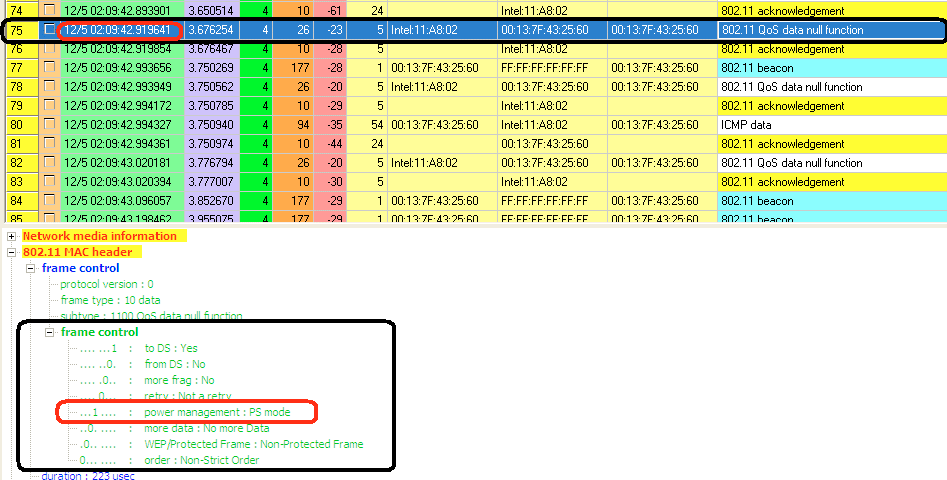
<p>Note frame 75 - This is my STA sending the AP a Data Null Frame. If you open the packet and drill down into the frame control you will see the power management bit is set 1.</p>
<p>&nbsp;<span class="full-image-block ssNonEditable"><span><img src="http://www.my80211.com/storage/psm1.gif?__SQUARESPACE_CACHEVERSION=1260001399127" alt="" /></span></span></p>
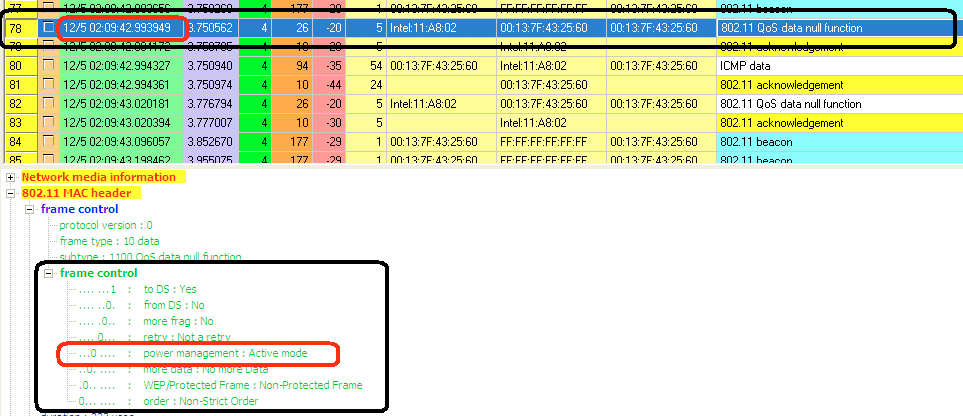
<p>Note frame 78 - This is my STA sending the AP a Data Null Frame. Note that the power bit is set to 0. Indicating to the STA is back on channel and any data that was buffered and future date should be sent to the client until its next doze state.&nbsp;</p>
<p><span class="full-image-block ssNonEditable"><span><img src="http://www.my80211.com/storage/psm2.gif?__SQUARESPACE_CACHEVERSION=1260001454006" alt="" /></span></span></p>
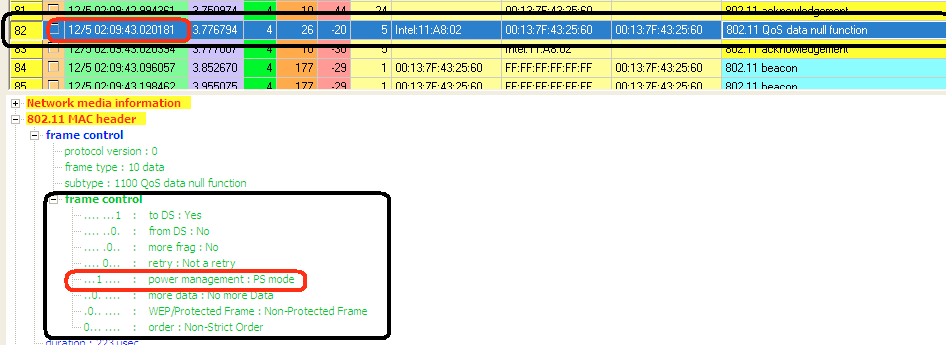
<p>Note frame 82 - STA is going back to bed!</p>
<p>&nbsp;<span class="full-image-block ssNonEditable"><span><img src="http://www.my80211.com/storage/psm3.gif?__SQUARESPACE_CACHEVERSION=1260001525008" alt="" /></span></span></p>
<p>What is also interesting to note is the TIME stamp. Look at the time delta between frames 75 - 78. This is the period of time the STA was off line, generally speaking.</p>
<p>You might ask when does the client come back online to the AP. Well that is dependent on how the STA is configured. For example, Intel has what I call the "slide bar" for PSM. The more aggressive the mode the longer the STA will be in sleep or doze mode.&nbsp;</p>
<p>Now that you know what a NULL frame is and its purpose. If you are troubleshooting a STA issue pay attention to what the STA is telling the access point! If a client is sending NULL frames there is a reason why!</p>]]></content></entry><entry><title>802.11 BEACON Discussions</title><id>http://www.my80211.com/80211/2009/2/23/80211-beacon-discussions.html</id><link rel="alternate" type="text/html" href="http://www.my80211.com/80211/2009/2/23/80211-beacon-discussions.html"/><author><name>George</name></author><published>2009-02-23T01:38:16Z</published><updated>2009-02-23T01:38:16Z</updated><content type="html" xml:lang="en-US"><![CDATA[<p><span style="font-size: 200%;"><strong>Coming March 2009!!</strong></span></p>
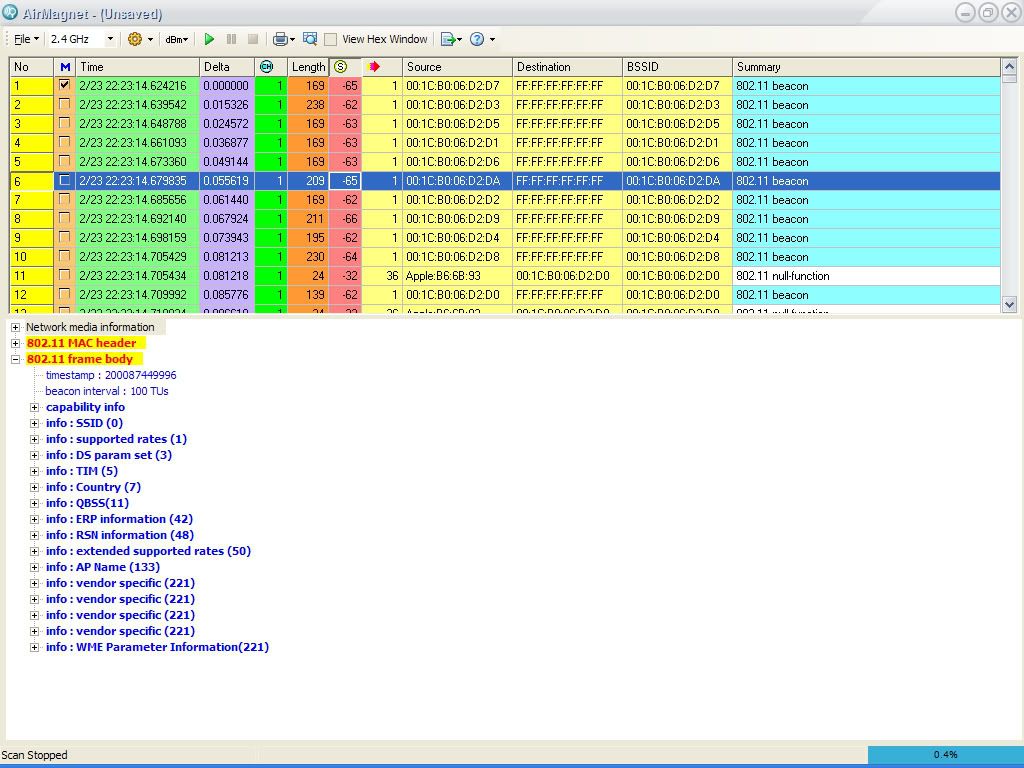
<p><span style="font-size: 200%;"><strong><span class="full-image-block ssNonEditable"><span><img src="http://i155.photobucket.com/albums/s298/wirelesssguru/beaconlab.jpg?__SQUARESPACE_CACHEVERSION=1235446068710" alt="" width="641" height="418" /></span></span><br /></strong></span></p>
<p>&nbsp;</p>]]></content></entry></feed>